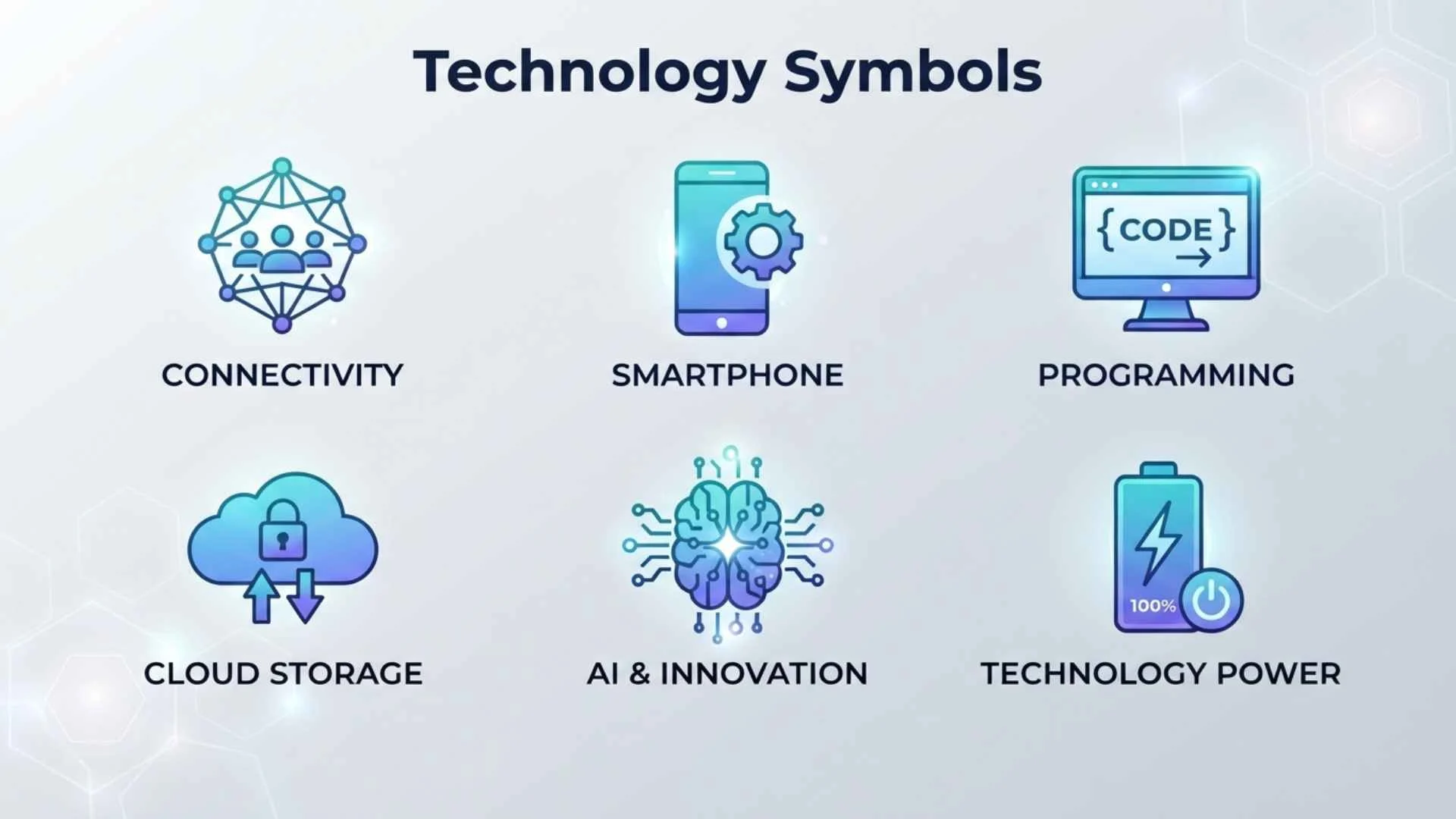
Technology symbols are a visual language used on smartphones, computers, electronic devices, websites, software, chargers, cables, and other digital products. A small icon can tell you whether a device is connected to Wi-Fi, charging, muted, locked, recording, syncing, or experiencing a problem.
If you have ever wondered what a symbol on your phone means, what the markings beside a laptop port indicate, or what an unfamiliar icon in an app represents, this guide can help. These technology symbols cover everything from basic power and battery icons to Wi-Fi, Bluetooth, USB, HDMI, NFC, keyboard, security, warning, and software symbols.
The important thing to remember is that symbols are not always universal. The same icon can have different meanings depending on the device, operating system, manufacturer, or application.
Quick Reference: Common Technology Symbols and Meanings
The following table provides a quick overview of frequently used technology icons.
| Symbol | Common Meaning | Typical Location |
| ⏻ | Power | Electronic devices |
| ⚙ | Settings | Phones, computers, apps |
| 🔋 | Battery | Phones, laptops, electronics |
| ⚡ | Charging or electricity | Chargers, batteries, devices |
| 📶 | Wireless signal | Phones, routers |
| Bluetooth symbol | Bluetooth connectivity | Phones, computers, accessories |
| 🔒 | Locked or secure | Websites, apps, devices |
| 🔓 | Unlocked | Devices and software |
| ☁ | Cloud storage or sync | Apps and computers |
| 🔍 | Search | Websites and applications |
| 🔊 | Sound or volume | Phones, computers, TVs |
| 🔇 | Muted | Audio and video devices |
| ▶ | Play | Media players |
| ⏸ | Pause | Media players |
| ⏹ | Stop | Media and recording software |
| ⏺ | Record | Cameras and recording apps |
| ↻ | Refresh, reload, or retry | Browsers and software |
| ⬆ | Upload | Websites and cloud services |
| ⬇ | Download | Websites and apps |
| 🗑 | Delete | Computers and apps |
| 📁 | Folder | File systems |
| 🔗 | Link | Websites and software |
| ✈ | Airplane mode | Smartphones and tablets |
| 📍 | Location | Phones and navigation apps |
| 🔄 | Sync or refresh | Apps and cloud services |
| ⚠ | Warning | Devices and software |
| ℹ | Information | Apps and websites |
| ✓ | Success or completion | Software interfaces |
| ❌ | Error or failure | Software and devices |
| 📷 | Camera | Phones and apps |
| 🎤 | Microphone | Phones and computers |
| 📡 | Wireless/network communication | Routers and devices |
The exact visual appearance can differ between operating systems and manufacturers.
What Are Technology Symbols?
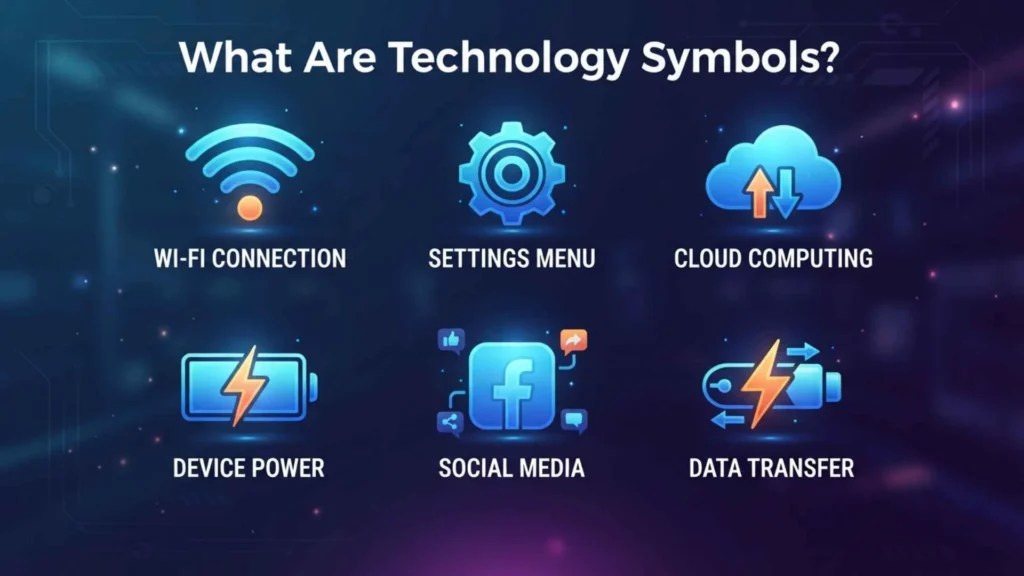
Technology symbols are visual signs, icons, or markings that communicate information about electronic devices, digital services, software functions, connections, and system status.
Why Technology Uses Symbols
Symbols allow manufacturers and software developers to communicate information quickly.
Instead of displaying “wireless network connection,” a device can display a Wi-Fi icon. Instead of writing “settings,” an application can use a gear.
Technology symbols are useful because they:
- Save screen space
- Make interfaces easier to navigate
- Communicate device status quickly
- Reduce the amount of written text
- Can be understood across different languages
- Help users recognize functions quickly
Interface Symbols vs Hardware Symbols
Technology symbols can generally be divided into two broad groups.
Interface symbols appear on screens, websites, applications, and operating systems.
Examples include:
- Settings
- Search
- Play
- Share
- Delete
- Upload
- Download
Hardware symbols are printed or engraved on physical equipment.
Examples include:
- USB
- HDMI
- Power
- Ethernet
- Charging
- Audio
- Display connections
Knowing this distinction helps when searching for the meaning of an unfamiliar symbol.
Smartphone Symbols and Status Bar Icons
Smartphones display numerous technology symbols in the status bar or notification area.
Wi-Fi Symbol
The Wi-Fi symbol generally indicates a wireless network connection.
It commonly appears as several curved lines above a small point. The number or strength of the lines can provide an indication of wireless signal strength.
A Wi-Fi icon can appear on:
- Android phones
- iPhones
- Tablets
- Laptops
- Smart TVs
- Routers
If the symbol has a warning mark or appears disconnected, the device may have limited network access.
Cellular Signal Symbol
The cellular signal icon usually consists of vertical bars.
More visible bars generally indicate stronger cellular reception.
A device may display a reduced signal when you are:
- Inside a building
- In a remote area
- Far from a cellular tower
- Experiencing network congestion
4G, LTE, and 5G Symbols
Mobile phones may display network technology labels such as 4G, LTE, or 5G.
These indicate the type of cellular network connection being used or available.
The displayed label depends on:
- Mobile carrier
- Phone model
- Location
- Network availability
- Network configuration
Bluetooth Symbol
The Bluetooth symbol indicates Bluetooth wireless technology.
It may appear when Bluetooth is enabled or when the phone is connected to a Bluetooth device such as:
- Wireless headphones
- Speakers
- Keyboards
- Mice
- Smartwatches
- Cars
- Game controllers
NFC Symbol
NFC stands for Near Field Communication.
An NFC symbol generally indicates that a device supports or is using short-range wireless communication.
NFC technology can be used for functions such as:
- Contactless payments
- Device pairing
- Access systems
- Data exchange
- Reading compatible tags
GPS and Location Symbol
A location pin, navigation arrow, or similar icon can indicate location services.
A location symbol may appear when an application is accessing location information for functions such as:
- Navigation
- Maps
- Weather
- Ride services
- Location-based searches
The exact icon differs between operating systems.
Airplane Mode Symbol
An airplane icon generally indicates airplane mode.
When enabled, airplane mode typically restricts cellular and other wireless communication functions. Modern smartphones may allow certain wireless features to be manually enabled while airplane mode remains active.
Do Not Disturb Symbol
A crescent moon or similar icon can represent a do-not-disturb or focus mode.
This feature can reduce or silence selected notifications according to the device’s settings.
Hotspot Symbol
A hotspot icon indicates that a phone or another device is sharing its internet connection with other devices.
It may appear when mobile hotspot or tethering is active.
Battery and Charging Technology Symbols
Battery icons are among the most important symbols on portable electronics.
Battery Symbol
The battery icon represents remaining power.
It is commonly found on:
- Smartphones
- Tablets
- Laptops
- Cameras
- Smartwatches
- Wireless headphones
The amount of the icon that appears filled generally provides a visual estimate of battery level.
Charging Symbol
A lightning bolt is commonly associated with charging.
When it appears beside or inside a battery icon, it generally means the device is receiving power.
However, a lightning bolt printed on physical equipment can have other electrical or power-related meanings.
Low Battery Symbol
A nearly empty battery generally indicates that the device has limited remaining power.
Some devices also display a warning message or percentage.
Battery Saver Symbol
A leaf, battery, shield, or other icon may represent power-saving mode.
Battery-saving features can reduce energy consumption by limiting certain background activities or device performance.
Computer Symbols and Their Meanings
Computers use many icons to represent common actions and functions.
Settings Gear
A gear icon generally opens settings.
Settings may include options for:
- Display
- Sound
- Network
- Privacy
- Security
- Accounts
- Notifications
- System preferences
Search Symbol
A magnifying glass normally represents search.
It can help you find:
- Files
- Applications
- Settings
- Websites
- Messages
- Information
Folder Symbol
A folder icon usually represents a directory or collection of files.
Folders help organize:
- Documents
- Pictures
- Videos
- Applications
- Downloads
- Other digital files
Trash Can Symbol
A trash can generally means delete or move an item to a trash or recycle area.
Depending on the operating system, deleted files may remain recoverable for some time.
Save Symbol
A floppy disk icon has traditionally represented the save function.
Although floppy disks are rarely used today, the symbol remains recognizable in many software applications.
Some modern applications automatically save changes and may not require a traditional save button.
Copy, Cut, and Paste Symbols
Computer interfaces commonly provide icons for manipulating text and files.
- Copy duplicates selected content.
- Cut removes selected content and places it on the clipboard.
- Paste inserts clipboard content elsewhere.
The exact icons vary between operating systems and applications.
Undo and Redo Symbols
A curved arrow pointing backward commonly represents undo.
A curved arrow pointing forward commonly represents redo.
These functions allow users to reverse or restore recent changes.
USB, HDMI, Ethernet, and Port Symbols
Physical ports are another important area where technology symbols appear.
USB Symbol
The USB symbol is commonly associated with Universal Serial Bus connections.
USB ports can be used for:
- Data transfer
- Charging
- Connecting accessories
- External storage
- Peripherals
The capabilities of a USB connection depend on the port, cable, device, and USB specification.
USB-C Symbol
USB-C describes a connector type with a small, reversible shape.
A USB-C port may support different combinations of:
- Charging
- Data transfer
- Display output
- Peripheral connections
The presence of a USB-C connector does not automatically mean every USB-C feature is supported.
HDMI Symbol
HDMI is commonly associated with digital audio and video connections.
HDMI ports can be found on:
- Televisions
- Monitors
- Laptops
- Game consoles
- Streaming equipment
- Receivers
The exact capabilities depend on the HDMI version and connected hardware.
Ethernet Symbol
An Ethernet or network symbol generally indicates a wired network connection.
Ethernet ports are commonly found on:
- Routers
- Desktop computers
- Laptops
- Network switches
- Smart TVs
- Gaming devices
Audio or Headphone Symbol
A headphone icon generally indicates an audio connection or headphone output.
It may appear beside a physical port or inside a device’s sound settings.
Microphone Symbol
A microphone icon generally represents audio input.
It may indicate:
- Microphone access
- Voice recording
- Audio settings
- Voice communication
- Muted or active microphone status
Internet and Connectivity Symbols
Modern devices rely on several technologies to communicate.
Wi-Fi
Wi-Fi symbols generally represent wireless local network connectivity.
Bluetooth
Bluetooth symbols indicate short-range wireless connectivity between compatible devices.
NFC
NFC symbols indicate near-field communication functionality.
VPN Symbol
A VPN-related icon can indicate that a virtual private network connection is active.
The design varies by operating system and VPN application.
Network or Ethernet Symbol
Network icons can indicate either wired or wireless connectivity.
They are commonly found in computer network settings and router interfaces.
Synchronization Symbol
Two circular arrows often represent synchronization.
Syncing can mean that information is being updated between:
- A phone and cloud service
- Multiple computers
- Apps
- Accounts
- Connected devices
Keyboard Symbols and Their Meanings
Computer keyboards contain their own set of technology symbols and labels.
Escape Symbol
The Esc key commonly cancels, closes, or exits an active operation.
Enter or Return Symbol
The Enter or Return key is often represented by a bent arrow.
It can:
- Confirm a command
- Submit information
- Create a new line
- Open a selection
Shift Symbol
An upward-pointing arrow commonly represents Shift.
It is used for uppercase letters and additional characters.
Control Symbol
Ctrl is commonly used on Windows and many other keyboards for keyboard shortcuts.
Command Symbol
Apple keyboards commonly use the Command symbol for many shortcuts.
Option Symbol
The Option key on Apple keyboards provides additional commands and shortcut functions.
Function Symbol
The Fn key is common on laptops and compact keyboards.
It allows secondary functions printed on other keys to be accessed.
Caps Lock Symbol
Caps Lock is used to type letters in uppercase without holding Shift.
Backspace and Delete
Backspace generally removes characters to the left of the cursor.
Delete can remove characters or selected items depending on the operating system and application.
Media and Audio Technology Symbols
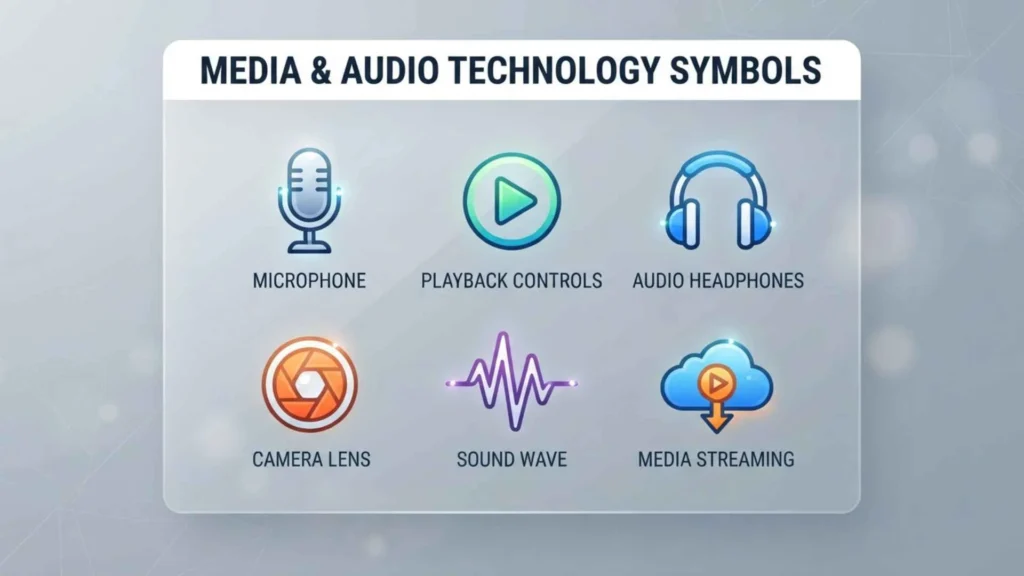
Media players use familiar symbols to control content.
Play Symbol
A right-pointing triangle generally means play.
It starts or resumes audio, video, or another media file.
Pause Symbol
Two vertical bars generally mean pause.
Pause temporarily stops playback without necessarily leaving the current position.
Stop Symbol
A square commonly represents stop.
It can end playback or recording depending on the application.
Record Symbol
A filled circle commonly represents recording.
It appears on:
- Cameras
- Voice recorders
- Audio software
- Video applications
- Streaming tools
Volume Symbol
A speaker icon generally represents volume or audio output.
A speaker with additional markings can indicate higher or lower volume.
Mute Symbol
A crossed-out or otherwise marked speaker generally indicates that audio is muted.
Software and Website Technology Symbols
Digital interfaces use many familiar symbols.
Home Symbol
A house icon generally links to a homepage or main screen.
Menu Symbol
Three horizontal lines are commonly used to represent a navigation menu.
This design is especially common on mobile websites and applications.
More Options Symbol
Three dots, either vertical or horizontal, generally indicate additional options.
Selecting the icon can reveal actions that do not fit directly into the interface.
Share Symbol
A share icon usually allows users to distribute content through another application, service, or contact.
Bookmark Symbol
A bookmark icon generally represents saving or storing content for later access.
Refresh Symbol
A circular arrow commonly means refresh or reload.
It may update:
- A webpage
- An inbox
- A feed
- Application content
- Network information
Upload Symbol
An upward arrow commonly represents uploading.
Uploading means transferring data from your device to a remote service.
Download Symbol
A downward arrow generally represents downloading.
Downloading transfers information from a remote service to your device.
Link Symbol
A chain-link icon usually represents a hyperlink or digital connection.
It can be used to insert, copy, or share a link.
Security and Privacy Symbols
Technology symbols are also used to communicate security states.
Lock Symbol
A closed lock commonly indicates:
- Locked access
- Security
- Privacy
- Protected information
- Restricted content
Its exact meaning depends on the context.
Unlock Symbol
An open lock usually indicates that a device, feature, account, or resource is unlocked or accessible.
Shield Symbol
A shield commonly represents protection or security.
It can be used for:
- Security software
- Antivirus features
- Privacy controls
- Account protection
- Permission settings
A shield icon by itself does not guarantee that a system is completely secure.
Fingerprint Symbol
A fingerprint icon generally represents biometric authentication.
It may be used for:
- Unlocking a phone
- Authorizing payments
- Logging into an account
- Access control
Face Recognition Symbol
A face-related icon can represent facial recognition or biometric authentication.
It may appear during device unlocking or identity verification.
Warning, Error, and Status Symbols
Technology devices use symbols to communicate problems and important states.
Warning Triangle
A triangle containing an exclamation mark commonly indicates a warning.
It may mean that:
- A feature needs attention
- A connection has a problem
- A device has detected an issue
- An action may have consequences
The exact problem should be determined from the accompanying message.
Exclamation Mark
An exclamation mark can indicate attention, an alert, or an error.
Information Symbol
An i inside a circle commonly represents information.
It may open:
- Help
- Details
- Explanations
- Technical information
- Additional instructions
Check Mark
A check mark often indicates:
- Success
- Completion
- Confirmation
- Verification
- A selected option
X or Cross Symbol
An X can represent:
- Close
- Cancel
- Delete
- Error
- Failed operation
Its meaning depends on its location.
Cloud and Data Symbols
Cloud icons have become common as more services move data online.
Cloud Symbol
A cloud can represent:
- Cloud storage
- Backup
- Synchronization
- Online services
- Remote computing
A cloud icon does not necessarily mean that all data exists only online.
Cloud Upload
A cloud combined with an upward arrow often represents uploading or backing up data.
Cloud Download
A cloud combined with a downward arrow can indicate downloading or restoring information.
Sync Symbol
Circular arrows commonly represent synchronization.
This means information is being updated between different locations or devices.
Camera and Video Symbols
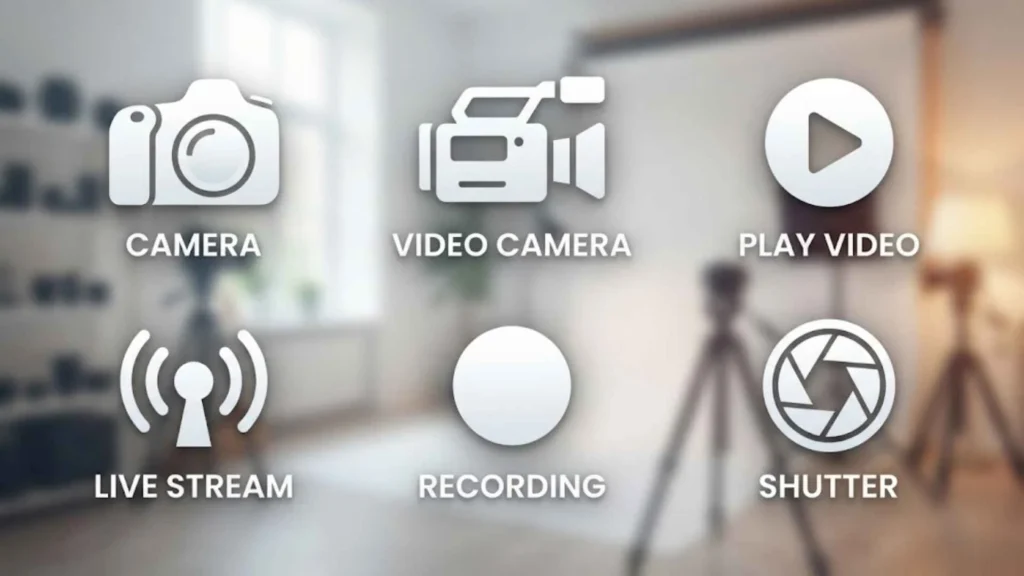
Visual communication has become a major part of modern technology.
Camera Symbol
A camera icon generally opens a camera or photo-related feature.
It may appear in:
- Smartphones
- Messaging applications
- Video conferencing software
- Social media
- Dating apps
Video Camera Symbol
A video camera usually represents video recording or video calling.
Screen Recording Symbol
A circle, camera, or specialized icon can indicate screen recording.
The exact design varies between operating systems and applications.
Screen Sharing Symbol
A screen or monitor combined with an arrow can indicate screen sharing or casting.
Common Symbols on Electronic Devices
Technology symbols are not limited to screens.
Television Symbols
Televisions may use symbols for:
- Power
- Volume
- Input
- HDMI
- USB
- Network
- Bluetooth
- Remote-control functions
Printer Symbols
Printers commonly display symbols for:
- Paper
- Ink
- Wi-Fi
- USB
- Printing
- Scanning
- Errors
- Paper jams
Router Symbols
Routers can have indicator lights or symbols for:
- Power
- Internet
- Wi-Fi
- Ethernet
- Wireless activity
- Connection status
Camera Symbols
Digital cameras commonly use icons for:
- Battery
- Flash
- Memory card
- Recording
- Autofocus
- Exposure
- Wi-Fi
- Bluetooth
Smart Home Device Symbols
Smart devices may use symbols for:
- Connectivity
- Microphone
- Camera
- Privacy
- Power
- Sensors
- Automation
- Voice control
Why Technology Symbols Look Different on Different Devices
You may recognize an icon but notice that it looks different on another device.
This is normal.
Different Operating Systems
Android, iOS, Windows, macOS, Linux, and other systems can use different icon designs.
Different Manufacturers
Manufacturers can customize their interfaces and hardware markings.
Different Applications
An app can assign its own meaning to a familiar-looking symbol.
Software Updates
An update may redesign an interface or introduce new features.
For this reason, an old screenshot may not accurately represent the current meaning or appearance of an icon.
How to Identify an Unknown Technology Symbol
If you see an unfamiliar icon, don’t immediately assume what it means.
Look at Where It Appears
A symbol in the phone’s status bar may describe connectivity or device status.
A symbol inside an application may represent an app-specific feature.
A symbol printed beside a physical port usually describes hardware functionality.
Look at Nearby Symbols
Related icons can provide context.
For example, a battery icon next to a lightning bolt is likely related to charging.
A monitor icon next to a cable port may indicate a display connection.
Check Its Color
Color can provide a clue about the state of a feature.
Common conventions include:
- Red for warnings or attention
- Green for active or successful states
- Blue for information or connectivity
- Gray for inactive or unavailable states
However, colors are not universal.
Look for Text or Tooltips
Some software shows a description when you hover over an icon or tap and hold it.
This can provide an exact explanation.
Check the Manufacturer or App Documentation
For an unfamiliar hardware marking or software icon, the manufacturer’s manual or official help documentation is usually the most reliable source.
Are Technology Symbols Universal?
Some technology symbols are widely recognized, but not every symbol has a universal meaning.
Widely Recognized Symbols
Symbols such as power, play, pause, search, settings, and volume are familiar across many devices and platforms.
Context-Specific Symbols
Other symbols are highly dependent on context.
For example, a lightning bolt might represent:
- Charging
- Electricity
- Fast charging
- A special software feature
Similarly, a cloud can represent:
- Cloud storage
- Backup
- Synchronization
- An online service
The safest approach is to interpret a symbol based on its location and surrounding information.
Frequently Asked Questions
What are technology symbols?
Technology symbols are visual icons, signs, and markings used on electronic devices, software, websites, and digital services to communicate functions, statuses, connections, warnings, and actions.
What are the most common technology symbols?
Common technology symbols include power, battery, Wi-Fi, Bluetooth, settings, search, lock, cloud, play, pause, volume, upload, download, refresh, USB, and warning icons.
What does the power symbol mean?
The power symbol generally represents turning an electronic device on or off. On some devices it may also relate to standby or power management.
What does the Wi-Fi symbol mean?
The Wi-Fi symbol generally indicates wireless network connectivity. Its appearance may also provide information about wireless signal strength.
What does the Bluetooth symbol mean?
The Bluetooth symbol indicates Bluetooth wireless technology or a Bluetooth connection. It is commonly found on smartphones, computers, headphones, speakers, vehicles, and other connected devices.
What does the USB symbol mean?
The USB symbol generally identifies a USB connection or port. USB connections can support functions such as data transfer, charging, and connecting peripherals, depending on the hardware.
What does USB-C mean?
USB-C identifies a reversible connector type. USB-C ports can support different capabilities, including charging, data transfer, and display output, depending on the device and implementation.
What does the HDMI symbol mean?
An HDMI symbol identifies a digital audio and video connection. HDMI is commonly used with televisions, monitors, computers, game consoles, and other multimedia equipment.
What does a lightning bolt symbol mean?
A lightning bolt commonly represents charging or electrical power. On software interfaces or specialized devices, it can have another meaning.
What does a cloud symbol mean?
A cloud symbol commonly represents cloud storage, backup, synchronization, or another cloud-based service.
What does a lock symbol mean?
A lock usually represents security, privacy, restricted access, or a locked device or feature.
What does a shield symbol mean?
A shield commonly represents security or protection. It may appear in antivirus software, privacy settings, account security controls, and permission interfaces.
What does a triangle with an exclamation mark mean?
A triangle with an exclamation mark generally represents a warning or condition requiring attention. The exact issue should be checked using the accompanying message.
What does a circular arrow mean in technology?
A circular arrow commonly means refresh, reload, retry, restart, or synchronization. Its exact function depends on the context.
What do the symbols on my phone mean?
Phone symbols can represent battery level, charging, Wi-Fi, cellular signal, Bluetooth, mobile network technology, location services, airplane mode, hotspot, notifications, and other device functions.
What do the symbols on a laptop mean?
Laptop symbols can indicate power, charging, battery level, Wi-Fi, Bluetooth, audio, microphone, camera, network connections, keyboard functions, ports, and system status.
What do keyboard symbols mean?
Keyboard symbols represent keys and their functions, including Shift, Control, Command, Option, Escape, Enter, Backspace, Delete, Function, Caps Lock, and navigation controls.
Why do technology icons look different on different devices?
Different operating systems, manufacturers, applications, and software versions use their own visual designs. As a result, the same function may have slightly different icons.
Are technology symbols the same everywhere?
No. Many symbols follow common conventions, but their exact meanings can vary by device, application, manufacturer, and context.
Can technology symbols change after an update?
Yes. Software updates can redesign icons, change their appearance, introduce new symbols, or alter how particular features are represented.
What does a red technology symbol mean?
Red often represents a warning, error, low battery, recording state, or another important condition. However, red does not have one universal meaning across all technology products.
Conclusion
Technology symbols provide a visual language that helps people interact with smartphones, computers, software, websites, electronic equipment, and connected devices. From familiar power and battery icons to Wi-Fi, Bluetooth, USB, HDMI, NFC, security, keyboard, media, and warning symbols, these visual indicators communicate important information quickly.
The most important thing to remember is that technology symbols are context-dependent. A lightning bolt may indicate charging on a smartphone but represent something different elsewhere. A cloud may mean synchronization or storage, while a star or other icon can have an application-specific purpose.
When you encounter an unfamiliar symbol, check where it appears, examine nearby icons and text, consider its color, and consult the device manufacturer’s or application’s documentation when necessary.
Once you understand the most common technology symbols and their meanings, identifying unfamiliar icons becomes much easier and you can use your devices and digital tools with greater confidence.

Hi, I’m Asher Monroe, a writer who believes that meaningful words have the power to inspire change and bring people closer to their dreams. I have always been fascinated by the beauty of quotes and the way a simple message can provide motivation, hope, and comfort.
I enjoy creating content around inspirational quotes, life lessons, success stories, and positive thoughts that help readers find encouragement in their everyday lives. My goal is to share words that connect with people and remind them of their inner strength.
Through my writing, I explore the ideas of personal growth, confidence, and the importance of staying inspired through every chapter of life.
I am the author of Words That Move the Soul and The Path of Endless Inspiration, two books focused on the power of wisdom, positivity, and meaningful thoughts.
 Sienna Brooks
 Rowan Sinclair Rowan Sinclair