Status bar Android phone symbols at the top of the screen can feel like a secret language when an unfamiliar icon suddenly appears.
Some symbols warn you about weak service, low battery, active calls, privacy access, or unread messages.
Others show that useful features such as Wi-Fi calling, Bluetooth, an alarm, or battery saver are working.
Understanding these small signs gives you greater control, reduces worry, and helps you notice security or connection problems before they become serious.
(Quick Answer) Status Bar Android Phone Symbols at the Top of the Screen
Android status bar symbols are small icons shown along the top edge of your phone screen. They communicate the device’s current condition, including signal strength, Wi-Fi, battery level, notifications, alarms, privacy access, calls, sound settings, location use, Bluetooth connections, and other active features.
Quick Facts About Status Bar Android Phone Symbols at the Top of the Screen
| Aspect | Information |
| Origin | Developed from early mobile phone signal, battery, and message indicators |
| Historical Significance | Helped users understand device conditions without opening menus |
| Main Meaning | Shows notifications, connections, settings, warnings, and active services |
| Spiritual Meaning | No standard spiritual meaning, although symbols can create feelings of control, urgency, safety, or anxiety |
| Cultural Importance | Forms a shared visual language used across billions of mobile devices |
| Modern Usage | Displays network, privacy, battery, communication, security, and app information |
What Are Status Bar Android Phone Symbols at the Top of the Screen?
The status bar is the narrow area at the top of an Android display. It normally contains the time, notification symbols, network information, Wi-Fi condition, and battery status.
Android separates these icons into two broad groups:
- Notification icons, usually appearing on the left side.
- System status icons, usually appearing on the right side.
Notification icons come from apps. A Gmail envelope may indicate a new email, while a messaging app logo may show that a message is waiting. System icons represent phone functions such as Wi-Fi, mobile service, Bluetooth, battery level, or airplane mode.
Google’s Android design documentation describes the status bar as the area containing notification icons and system icons. Pulling down from the status bar opens the notification shade, where more information becomes available.
The exact position and appearance of an icon can vary. Samsung Galaxy phones, Google Pixel devices, Motorola phones, Xiaomi models, and other Android brands may use slightly different designs.
Software versions also matter. An icon shown in Android 16 may look different from its equivalent in an older version. Phone manufacturers can also hide less important icons to reduce clutter.
The History and Evolution of Android Status Bar Icons
Early mobile phones had very limited screens. They could not display long explanations, so designers relied on simple images.
The first common mobile indicators included:
- Signal bars
- Battery outlines
- Envelope symbols
- Roaming indicators
- Alarm clocks
- Missed-call icons
When Android was introduced commercially in 2008, its status bar expanded this visual language. Smartphones now needed to show app alerts, downloads, GPS use, wireless connections, synchronization, and security information.
As Android became more advanced, the status bar gained new responsibilities. Modern icons may now reveal:
- 5G network access
- Wi-Fi calling
- Virtual private network connections
- Data saver mode
- Screen recording
- Camera and microphone use
- Mobile hotspot activity
- Nearby device connections
The basic purpose, however, has not changed. The status bar gives you an immediate picture of what your phone is doing.
How to Read the Android Status Bar
The easiest way to understand the top of your Android screen is to divide it into two sides.
Symbols on the Left Side
The left side usually displays notifications from apps and services. Common examples include:
- Missed calls
- Text messages
- Emails
- Social media alerts
- App updates
- Downloads
- Screenshots
- Calendar reminders
When several notifications are waiting, Android may show only a few icons. A small dot can indicate that more icons exist than the available space can display. Pull down the notification shade to view the full list.
Symbols on the Right Side
The right side usually contains system information, including:
- Mobile signal
- Wi-Fi
- Battery level
- Airplane mode
- Bluetooth
- Alarm
- Sound mode
- VPN
- Location access
- Camera or microphone use
This division is common but not universal. A manufacturer may rearrange certain elements.
Android Status Bar Icons Meaning
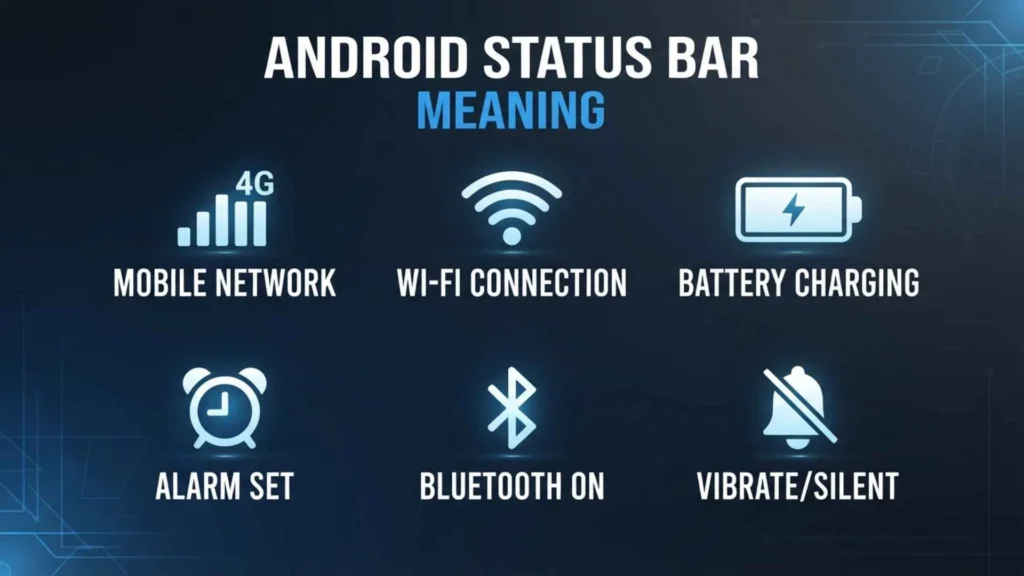
Android status bar icons give you quick information about your phone’s current status. These small symbols can show your network connection, Wi-Fi, battery level, Bluetooth, alarms, location services, calls, notifications, and other active features.
The exact icons can vary depending on your Android version and phone manufacturer. For example, Samsung, Xiaomi, OPPO, Motorola, and Google Pixel phones may use slightly different designs for the same function.
Common Android status bar icons include:
- Wi-Fi icon: Shows that your phone is connected to a Wi-Fi network.
- Mobile signal bars: Indicate the strength of your cellular network connection.
- 5G or 4G/LTE: Shows the type of mobile data connection currently available.
- Battery icon: Displays the remaining battery power.
- Bluetooth icon: Appears when Bluetooth is active or connected to a device.
- Airplane mode: Indicates that wireless cellular connections have been disabled.
- Alarm icon: Appears when an alarm is set.
- Location icon: Indicates that an app or service is using your location.
- Do Not Disturb: Shows that notification interruptions have been restricted.
- VPN icon: May appear when your phone is connected to a VPN.
- Notification icons: Represent messages, emails, app alerts, downloads, and other notifications.
If an unfamiliar symbol appears, pulling down the notification panel can often provide additional information about what triggered it.
Xiaomi Status Bar Icons Meaning
Xiaomi phones use a range of status bar symbols to show network activity, battery information, notifications, and active phone features. The appearance of some icons depends on the Xiaomi model, Android version, and MIUI or HyperOS version installed on the device.
You may see icons for:
- Mobile network signal
- Wi-Fi connection
- Mobile data
- 4G, LTE, or 5G
- Bluetooth
- Battery and charging
- Alarm
- Silent or vibration mode
- Location services
- Hotspot
- VPN
- Do Not Disturb
- Screen recording
- NFC
- App notifications
Some Xiaomi phones also display separate indicators when features such as hotspot, screen recording, or location services are active.
Because Xiaomi’s interface changes between software versions, an icon on one model may look slightly different on another. If you cannot identify a symbol, opening the notification shade is usually the easiest way to see which feature or app is responsible.
Specific Icon
A specific icon in the Android status bar usually represents a particular phone function, connection, or notification. The meaning cannot always be determined from its shape alone because manufacturers use different icon designs.
For example, a triangle, arrow, shield, circle, or small handset symbol can have different meanings depending on the phone model and software version.
To identify an unfamiliar Android icon, check:
- Which side of the status bar it appears on
- Whether it stays visible or disappears
- Whether it appeared after installing or opening an app
- Whether mobile data, Wi-Fi, Bluetooth, or location is enabled
- The exact phone model and Android version
- The notification panel for additional details
If the icon is still unclear, a screenshot of the status bar can make identification much easier.
Notification Icons Top Left Corner Android
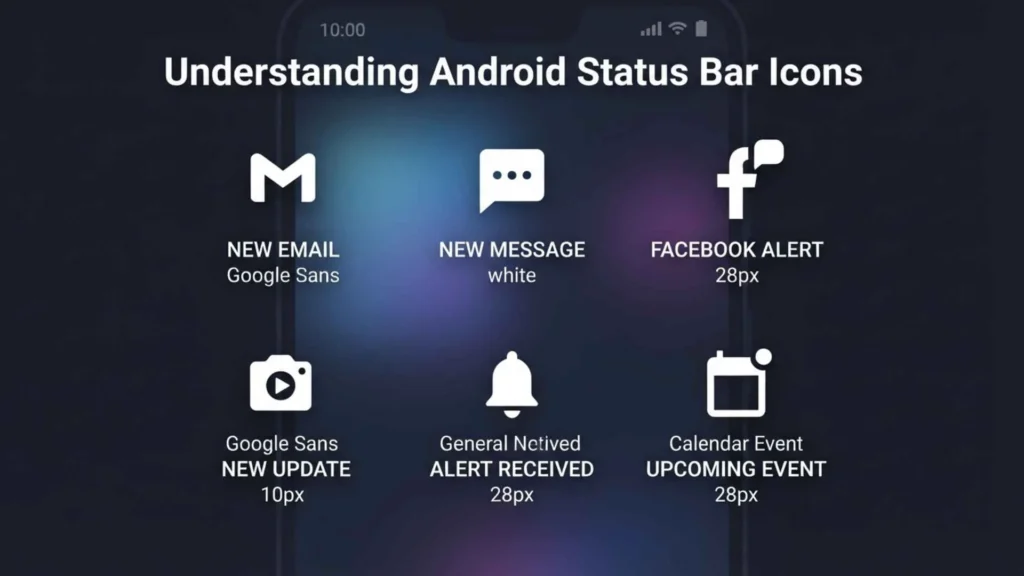
On many Android phones, the top-left corner of the status bar is primarily used for notification icons. These symbols alert you when an app has something new or when a system feature needs your attention.
Examples include:
- New text messages
- Missed calls
- Gmail or email notifications
- WhatsApp or other messaging alerts
- App updates
- Downloads
- Calendar reminders
- Voicemail
- Screenshots
- System notifications
- USB connections
The notification icon generally does not mean that the app is currently open. Instead, it means the app or Android system has generated a notification.
You can usually swipe down from the top of the screen to view the full notification and learn what caused the icon to appear.
Android Triangle Icon in Status Bar US Cellular
A triangle-shaped icon on an Android phone using US Cellular can have different meanings depending on the device and software version. It may relate to network status, connectivity, roaming, or another system feature.
The important point is that there is no single universal meaning for every triangle symbol on Android. Samsung, Motorola, and other manufacturers can use different symbols, while carrier-specific services may also affect what appears.
If the triangle appears alongside a cellular signal indicator, check the notification panel for a related network message. You can also look under Settings > Network & Internet, Connections, or a similarly named section, depending on your phone.
If you are using an older US Cellular device, the exact model is especially important because status bar designs differ between Android generations.
US Cellular Galaxy S9 Plus Icons on Status Bar
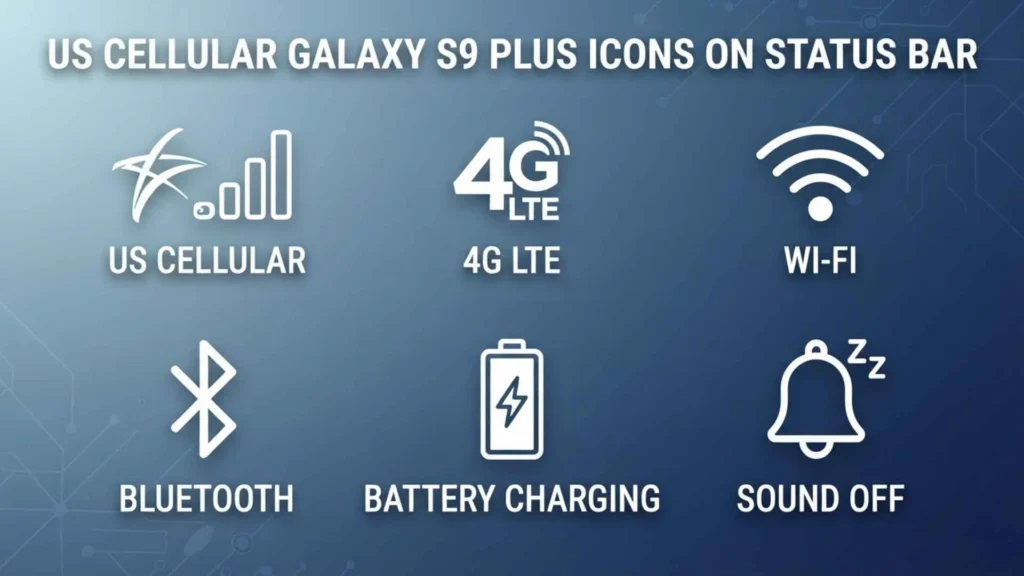
On a Samsung Galaxy S9 Plus using US Cellular, the status bar can display icons for cellular service, Wi-Fi, battery, notifications, and Samsung-specific functions.
Common symbols include:
- Signal bars: Show cellular signal strength.
- 4G/LTE: Indicates the available mobile network connection.
- Wi-Fi: Shows an active Wi-Fi connection.
- Battery: Displays battery status and charging information.
- Bluetooth: Indicates Bluetooth is turned on or connected.
- Alarm: Shows that an alarm has been scheduled.
- NFC: Indicates that NFC is enabled.
- Location: Shows that location services are being used.
- Do Not Disturb: Indicates that notification interruptions are restricted.
- VPN: Can appear when a VPN connection is active.
- Notification icons: Show alerts from apps and system services.
The Galaxy S9 Plus is an older Samsung model, so its icons may look different from those on newer Galaxy phones. A US Cellular network indicator can also vary depending on network conditions and the phone’s settings.
OPPO Phone Symbols at Top of Screen
OPPO phones use the top portion of the screen to display status and notification symbols. Depending on the OPPO model and ColorOS version, these icons can indicate network connectivity, battery status, notifications, and active features.
Common OPPO symbols include:
- Cellular signal strength
- Wi-Fi
- Mobile data
- 4G or 5G
- Bluetooth
- Battery level
- Charging
- Alarm
- Silent mode
- Vibrate mode
- Location
- Hotspot
- VPN
- Do Not Disturb
- Screen recording
- App notifications
The exact appearance of these symbols can change between ColorOS versions. Some newer OPPO phones may also use different layouts because of their camera cutout or notification design.
If you see an unfamiliar symbol, swipe down from the top of the screen. The expanded notification panel may provide enough information to identify it.
What Is the Bar at the Top of the Screen Called Android?
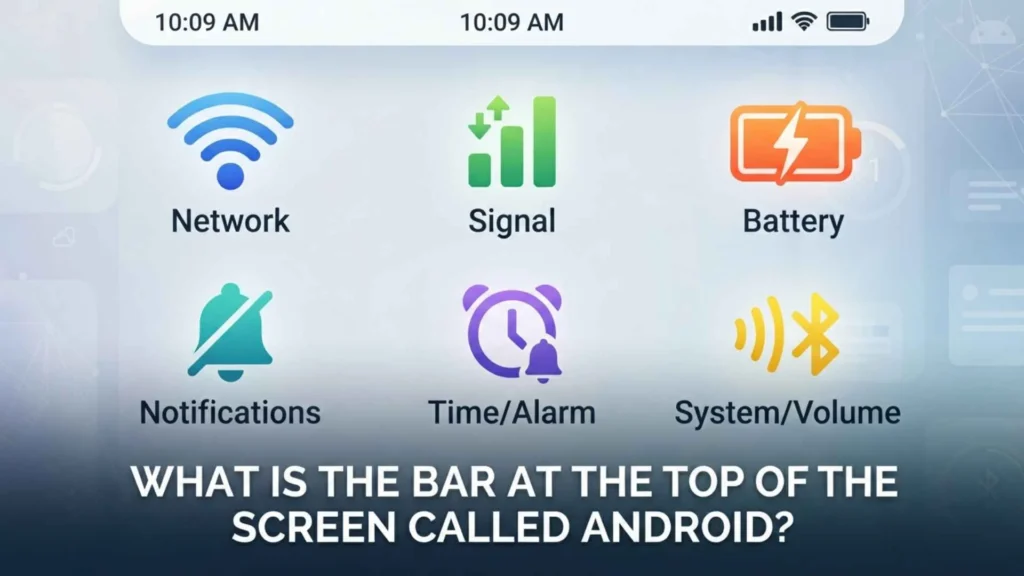
The bar at the top of an Android phone is generally called the status bar. It provides a quick overview of important phone information without requiring you to open Settings.
The status bar can contain:
- Time and date information
- Battery level
- Cellular signal
- Wi-Fi connection
- Mobile data status
- Bluetooth status
- Notifications
- Alarm information
- Location indicators
- Other system icons
Android phones can arrange these elements differently depending on the manufacturer. Samsung, Xiaomi, OPPO, Google Pixel, and other brands may use different designs.
It is also useful to distinguish the status bar from the notification panel. The status bar is the narrow area visible at the top of the screen, while the notification panel opens when you swipe down from the top.
Icons Top Right Corner Android
The top-right corner of an Android screen commonly contains status indicators rather than individual app notifications. These icons provide information about the phone’s connectivity, battery, and active settings.
You may find symbols such as:
- Battery icon: Shows remaining battery power.
- Charging symbol: Indicates that the phone is charging.
- Wi-Fi icon: Shows an active Wi-Fi connection.
- Mobile signal: Displays cellular signal strength.
- 4G, LTE, or 5G: Shows the current mobile network technology.
- Bluetooth: Indicates that Bluetooth is active or connected.
- Alarm: Shows that an alarm is set.
- VPN: Indicates an active VPN connection on supported devices.
- Do Not Disturb: Shows that interruption controls are enabled.
- Battery saver: May appear when a battery-saving mode is active.
Common Status Bar Android Phone Symbols and Meanings
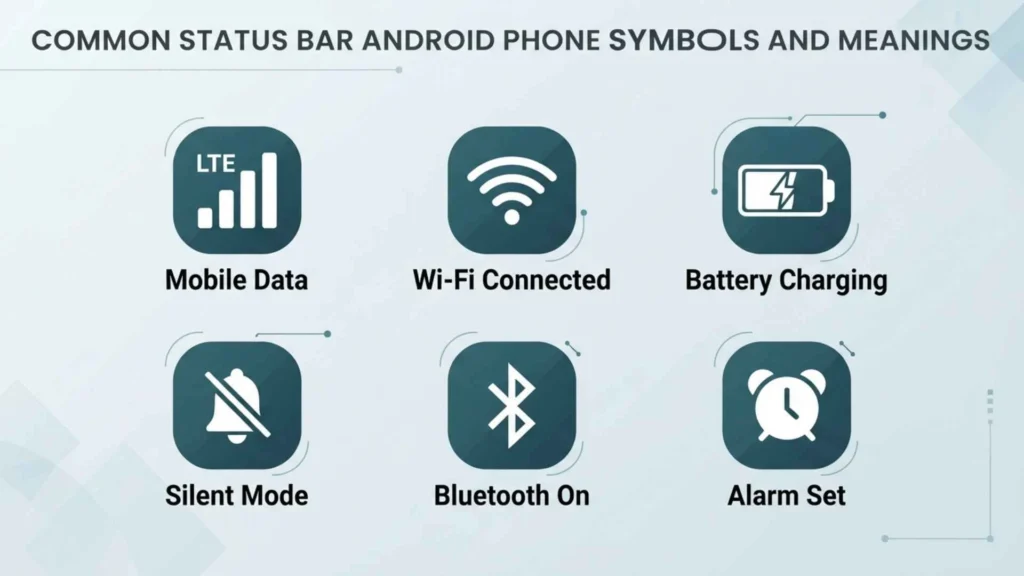
Mobile Signal Bars
A group of rising vertical bars represents your cellular connection.
More filled bars generally mean a stronger signal. Fewer bars suggest a weaker connection. An empty or crossed-out signal icon may mean that the phone cannot connect to a mobile network.
Signal strength can be affected by:
- Distance from a cell tower
- Thick walls
- Underground locations
- Weather conditions
- Network congestion
- Carrier outages
Signal bars do not always measure internet speed. You can have strong cellular reception but slow data because the network is busy.
No Service Symbol
A crossed circle, empty triangle, crossed signal bars, or similar mark may indicate no mobile service.
Possible causes include:
- Poor network coverage
- An inactive SIM
- A damaged SIM card
- Airplane mode
- A carrier outage
- Incorrect network settings
Restarting the phone or briefly enabling and disabling airplane mode may restore the connection.
Emergency Calls Only
This message or icon means your phone cannot connect normally to your carrier, but it may still be able to place an emergency call through an available compatible network.
Check your SIM, carrier account, signal area, and network settings if the message remains.
3G, 4G, LTE, 5G, or 5G+ Symbols
These letters show the type of mobile data network currently available.
| Symbol | General Meaning |
| E | EDGE, a very slow older data connection |
| H or H+ | HSPA mobile data |
| 3G | Third-generation mobile network |
| 4G | Fourth-generation mobile connection |
| LTE | Long-Term Evolution network |
| 4G+ or LTE+ | Multiple network bands combined for greater capacity |
| 5G | Fifth-generation mobile network |
| 5G+ or 5G UW | A carrier’s faster or higher-capacity form of 5G |
The exact label depends on your carrier, phone, country, and network technology.
Wi-Fi Symbol
The fan-shaped Wi-Fi icon means your phone is connected to a wireless network.
More filled curves usually represent a stronger connection. A small exclamation mark may mean the phone is connected to the router but cannot reach the internet.
A Wi-Fi icon with arrows may show data being uploaded or downloaded.
Wi-Fi Calling Symbol
A phone receiver combined with Wi-Fi waves normally indicates Wi-Fi calling. This feature allows supported calls to travel through a Wi-Fi connection when cellular coverage is weak.
The feature must be supported by the phone and mobile carrier. Samsung support materials identify the phone-and-Wi-Fi symbol as the indicator for Wi-Fi calling.
Battery Icon
The battery outline shows approximately how much charge remains.
Depending on your phone, the icon may also include:
- A percentage
- A lightning bolt while charging
- A leaf or plus symbol for power-saving mode
- A warning color when charge is low
If the battery symbol shows a question mark or warning sign, the phone may be having trouble reading the battery.
Lightning Bolt Inside the Battery
A lightning bolt normally means the phone is charging.
Some devices display two lightning bolts or a special animation for fast, rapid, or super-fast charging. Charging speed depends on the adapter, cable, battery temperature, and phone support.
Battery Saver Symbol
A battery containing a plus sign, leaf, or altered color often means Battery Saver or Power Saving Mode is active.
This mode may limit:
- Background app activity
- Screen brightness
- Refresh rates
- Location activity
- Visual effects
- Automatic synchronization
Battery saver is useful when you need the phone to last longer, but notifications or app updates may arrive more slowly.
Airplane Mode Symbol
An airplane icon means airplane mode is enabled.
This normally turns off cellular communication. Wi-Fi and Bluetooth may also be disabled at first, although many Android phones allow you to turn them back on manually while airplane mode remains active.
Bluetooth Symbol
The angular Bluetooth rune means Bluetooth is turned on or being used.
The symbol is based on runic characters associated with the initials of the tenth-century Danish king Harald Bluetooth. In modern devices, it represents short-range wireless communication.
A connected-device variation may appear when your phone is linked to:
- Earbuds
- A smartwatch
- A car
- A speaker
- A keyboard
- A fitness tracker
Some Android versions show the Bluetooth icon only when a device is actively connected.
Alarm Clock Symbol
A small clock means at least one alarm is scheduled.
It may refer to:
- A Clock app alarm
- A bedtime schedule
- A third-party alarm app
- An upcoming wake-up routine
Open your Clock app if the icon appears unexpectedly.
Clock or Timer Symbol
A circular clock, stopwatch, or hourglass may mean a timer is running. Third-party productivity apps can also create similar icons.
Pull down the notification panel to identify the app responsible.
Silent Mode Symbol
A crossed-out speaker means the phone is in silent mode.
Calls and notifications may appear visually without producing sound. Alarm behavior depends on your sound and Clock settings.
Vibrate Mode Symbol
A phone or speaker surrounded by movement lines usually means vibrate mode is active.
The phone will vibrate for supported calls and notifications instead of playing a ringtone.
Do Not Disturb Symbol
A circle containing a horizontal line, minus sign, or similar mark usually represents Do Not Disturb.
This mode can silence selected calls, alerts, sounds, or visual interruptions. Exceptions may be allowed for alarms, favorite contacts, repeated callers, or important apps.
Location Pin Symbol
A map pin or arrow can mean an app is using your location.
Navigation, weather, rideshare, camera, emergency, fitness, and mapping apps may request location access. The icon does not automatically mean that someone is tracking you maliciously.
On newer Android systems, privacy indicators may show when sensitive services such as location, camera, or microphone are being accessed. Android’s platform documentation explains that privacy indicators can reveal ongoing sensitive access and allow users to inspect which apps are responsible.
Green Dot or Green Camera and Microphone Indicator
A green dot or green icon at the top-right corner means an app is using your camera, microphone, or both.
This is a privacy feature, not usually a hardware fault.
Google explains that you can swipe down and tap the green indicator to see which app or service is accessing the camera or microphone. You can then open permission controls if necessary.
Common reasons include:
- A phone call
- Video recording
- Voice typing
- A video meeting
- A camera app
- Voice assistant activity
- A social media recording feature
Investigate if the indicator remains active when you are not knowingly using either sensor.
Camera Symbol
A camera-shaped icon can mean:
- The camera is being used
- A camera-related notification is active
- A screenshot or screen capture tool is running
- A connected camera accessory is active
Swipe down to find the related notification.
Microphone Symbol
A microphone symbol may appear during:
- Calls
- Voice recordings
- Voice searches
- Voice typing
- Video conferences
- Accessibility services
- Digital assistant use
Check app permissions if the microphone icon appears unexpectedly.
VPN Key Symbol
A key symbol usually means a virtual private network is active.
A VPN routes network traffic through a protected or managed connection. It may be provided by:
- A privacy app
- Your employer
- A school
- A security service
- A parental control app
- A network-filtering tool
The key does not necessarily mean the phone is hacked. Open Settings and search for “VPN” to identify the active service.
Data Saver Symbol
A circle, triangle, or interrupted data symbol may mean Data Saver is active.
Data Saver reduces background mobile data use. Apps may wait until you open them before refreshing their content.
Mobile Hotspot Symbol
A group of circles, linked rings, or wireless waves may indicate that your phone’s hotspot is active.
Other devices may be using your mobile data connection. Turn the hotspot off when it is no longer needed to save battery and protect your data allowance.
NFC Symbol
A stylized “N” means Near Field Communication is enabled.
NFC supports close-range features such as:
- Contactless payments
- Transit passes
- Device pairing
- Reading compatible tags
- Sharing certain data
Some phones no longer show the NFC icon constantly.
Screen Cast Symbol
A rectangle with curved waves in one corner means the screen or media is being cast to another display.
Possible destinations include:
- A television
- A streaming device
- A smart display
- A wireless monitor
Stop casting from Quick Settings if the connection is accidental.
Screen Recording Symbol
A video camera, solid dot, or recording symbol may mean the screen is being recorded.
Android normally shows an ongoing notification while screen recording is active. Stop the recording from the notification shade or Quick Settings.
Download Arrow
A downward arrow means a file, app, update, or media item is downloading.
The icon may remain until the download finishes, fails, or is cleared.
Upload Arrow
An upward arrow indicates that data is being uploaded.
This can happen during:
- Cloud backups
- Photo syncing
- File transfers
- Email attachment uploads
- Social media posting
Sync Symbol
Two curved arrows forming a circle indicate synchronization.
Your phone may be syncing email, contacts, photos, calendar information, files, or account settings.
Call in Progress Symbol
A phone receiver means a call is active.
A small Wi-Fi mark may indicate Wi-Fi calling. A Bluetooth mark may show that call audio is routed to a wireless device.
Missed Call Symbol
A phone receiver with an arrow or warning mark normally means you missed a call.
Open the Phone app or pull down the notification panel to view the caller.
Voicemail Symbol
A tape-reel-style icon, connected circles, or voicemail logo means a new voicemail is waiting.
The icon may remain if the carrier’s voicemail system has not marked the message as heard. Calling voicemail or clearing the Phone app notification can resolve it.
SIM Card Symbol
A SIM-shaped icon with a question mark, cross, or exclamation mark may mean:
- No SIM is installed
- The SIM is not recognized
- The SIM is locked
- The SIM has a network problem
- An eSIM profile is inactive
Restart the phone and check your SIM settings. Contact your carrier if the warning remains.
Roaming Symbol
The letter “R” near the signal bars usually means your phone is connected to a network outside your carrier’s normal home network.
Roaming may involve extra charges, especially during international travel. Check your plan before using mobile data.
Headphones Symbol
A headphone icon means wired or wireless headphones are connected.
If the symbol remains after headphones are removed, inspect the port for dust, moisture, or debris, then restart the phone.
Hearing Aid Symbol
An ear, hearing aid, or accessibility icon may mean hearing-device compatibility or an accessibility service is active.
The precise appearance depends on your phone and connected equipment.
Accessibility Person Symbol
A person-shaped icon can represent the Android Accessibility Menu, magnification, TalkBack, Select to Speak, or another accessibility shortcut.
These tools help people control or understand the phone more easily.
Keyboard Symbol
A keyboard icon may appear when a physical keyboard is connected or when Android allows you to switch between available on-screen keyboards.
Tap the related notification to select an input method.
Work Profile Briefcase
A small briefcase means a work profile is active.
Organizations use work profiles to separate business apps and information from personal content. A briefcase may also appear on individual work app icons.
Lock Symbol
A lock may indicate:
- A secure connection
- Screen rotation lock
- A locked work profile
- A security service
- An active device-management policy
Because several features use lock imagery, pull down the notification shade for context.
Rotation Lock Symbol
A phone surrounded by a curved arrow, sometimes with a lock, means automatic screen rotation is disabled.
The screen will remain in portrait or landscape orientation until rotation settings are changed.
Eye Symbol
On some phones, an eye icon represents a feature that keeps the screen awake while you are looking at it. On others, it may indicate an accessibility, display, privacy, or visual comfort feature.
Samsung has used eye-shaped symbols for functions such as Smart Stay on certain older models.
Moon Symbol
A crescent moon often represents Do Not Disturb, bedtime mode, sleep mode, or a dark display setting.
Its meaning depends on your phone manufacturer and active software.
Leaf Symbol
A leaf can represent battery optimization, energy saving, an environmentally focused charging feature, or reduced performance.
Check Battery or Device Care settings for the exact feature.
Shield Symbol
A shield commonly represents:
- Device protection
- Secure Wi-Fi
- A security scan
- A VPN
- Parental controls
- Work-device management
Security apps often create their own shield-shaped notification icons.
Exclamation Mark Symbol
An exclamation mark is a general warning. Its meaning depends on the symbol surrounding it.
Examples include:
- Wi-Fi connected without internet
- SIM problem
- Mobile network problem
- Battery issue
- Failed synchronization
- Storage warning
Pulling down the notification panel usually reveals the cause.
Samsung Galaxy Status Bar Symbols
Samsung Galaxy phones use Android with Samsung’s One UI interface. Most symbols are familiar, but their shape and visibility may differ from stock Android.
Samsung’s official guide states that status bar icons provide information about active features, system notifications, and the device’s current condition.
Common Samsung indicators include:
- Signal strength
- Roaming
- No SIM
- 4G, LTE, or 5G
- Wi-Fi connection
- Wi-Fi calling
- Bluetooth
- NFC
- Airplane mode
- Alarm
- Silent or vibrate mode
- Power saving
- Mobile hotspot
- S Pen connection
- Location use
- Call in progress
Newer One UI versions may hide some persistent status icons until you expand the Quick panel. This can make an active feature seem invisible even though it is still running.
Google Pixel Status Bar Symbols
Pixel phones use Google’s version of Android and usually follow Android’s standard visual language closely.
Common Pixel symbols include:
- Mobile signal triangle
- 4G, LTE, or 5G label
- Wi-Fi fan
- Battery percentage
- Alarm clock
- VPN key
- Do Not Disturb circle
- Hotspot icon
- Cast icon
- Camera and microphone privacy indicator
Pixel phones may replace excess icons with a dot when the top bar lacks enough room. The full notifications remain available in the notification shade.
Status Bar Symbols on Motorola, Xiaomi, OnePlus, Oppo, and Other Phones
Each manufacturer adds its own interface layer.
For example:
- Xiaomi uses HyperOS on many current devices.
- OnePlus uses OxygenOS.
- Oppo uses ColorOS.
- Motorola uses an interface close to standard Android.
- Vivo uses Funtouch OS or OriginOS in certain markets.
The same feature may therefore have a different symbol. A mobile hotspot icon on one phone may look like linked circles, while another may use a fan-shaped network image.
When a symbol does not match a general Android guide, check the support page for your phone’s exact model and software version.
Notification Icons Versus System Icons
| Feature | Notification Icon | System Status Icon |
| Source | An app or service | Android or the phone manufacturer |
| Usual Position | Left side | Right side |
| Examples | Email, message, download, missed call | Battery, signal, Wi-Fi, VPN |
| How to Inspect | Pull down the notification shade | Open Quick Settings or Settings |
| Can It Be Cleared? | Often yes | Usually only by turning off the feature |
An app icon at the top does not always represent danger. It usually means the app has created a notification.
Android distinguishes between alerting and silent notifications. Google notes that alerting notifications may create sound and a status bar icon, while silent notifications remain visible when you pull down from the top.
Why Some Android Symbols Disappear
A symbol may disappear for several normal reasons:
- The related feature turned off.
- The notification was dismissed.
- The phone hid icons to save space.
- A software update changed the interface.
- The manufacturer shows the icon only when a device is connected.
- The app changed its notification settings.
- The symbol moved into the expanded Quick Settings panel.
A disappearing Bluetooth icon, for example, may simply mean Bluetooth is enabled but no device is connected.
Why There Is a Dot at the Top of the Android Screen
The color and location of the dot matter.
Green Dot
A green dot usually indicates camera or microphone use.
Small White or Black Dot Near Other Icons
A small neutral-colored dot may be an overflow indicator. It means more notification or status icons exist than the status bar has room to display.
Floating Dot on the Side of the Screen
A floating dot may belong to:
- An accessibility shortcut
- A gaming tool
- A screen recorder
- A messaging bubble
- A manufacturer’s assistant menu
- A third-party app
Tap or long-press it to identify the feature.
Deep Symbolic and Psychological Meaning of Status Bar Icons
Android status bar symbols do not have traditional religious or spiritual meanings. However, they are powerful examples of modern visual symbolism.
Psychological Level
The human brain recognizes simple shapes faster than it reads long explanations. A nearly empty battery creates urgency. Full signal bars create confidence. A green privacy dot creates awareness.
These reactions are shaped by learning and repetition.
Over time, users develop automatic emotional responses:
- A red battery may create concern.
- A message icon may create anticipation.
- A crossed signal symbol may create frustration.
- A shield may create reassurance.
- A microphone indicator may create caution.
Cultural Level
Mobile icons form an international visual language. People who speak different languages can still recognize Wi-Fi, battery, alarm, and airplane mode symbols.
However, meanings are not completely universal. A symbol can change across brands, countries, carriers, and software versions.
Personal Level
Status symbols can also influence habits. Some people repeatedly check message icons because they fear missing social contact. Others feel anxious when the battery drops below a certain percentage.
In this way, a tiny image can shape attention, mood, and behavior.
Status Bar Symbols Across Different Cultures and Traditions
Android status symbols are modern, but their design follows older cultural habits of visual communication.
Ancient Egypt
Egyptians used hieroglyphs to represent ideas, objects, sounds, and actions. Like status icons, hieroglyphs compressed information into recognizable images. Android icons are not descended directly from Egyptian writing, but both systems show how humans use pictures to communicate efficiently.
Ancient Greece
Greek culture contributed many signs still used in mathematics, science, medicine, and technology. Modern interface design continues this tradition of assigning shared meanings to simple shapes.
Roman Culture
Roman military standards, road markers, and public inscriptions helped communicate identity, direction, and authority. Today’s signal and warning icons serve a practical version of the same purpose.
Eastern Traditions
Chinese characters, Japanese kanji, seals, and symbolic color systems demonstrate how compact visual forms can hold layered information. Modern phone interfaces similarly depend on recognition rather than lengthy text.
Indigenous Traditions
Indigenous cultures around the world have used pictographs, patterns, carvings, and environmental signs to preserve knowledge and communicate. These traditions should not be reduced to modern app icons, but they reveal the deep human ability to attach meaning to visual patterns.
Modern Global Culture
Today, battery, Wi-Fi, play, pause, search, and location-pin icons appear across national borders. They are part of a global digital vocabulary.
Similar Symbols and Their Meanings
| Symbol Pair | Similarity | Important Difference |
| Wi-Fi and Hotspot | Both use wireless imagery | Wi-Fi receives a connection, while hotspot shares one |
| Silent and Do Not Disturb | Both reduce interruptions | Silent changes sound, while Do Not Disturb can filter entire categories |
| Location Pin and Navigation Arrow | Both concern location | A pin often shows location access, while an arrow may show navigation |
| VPN Key and Lock | Both suggest protection | A key often represents a VPN, while a lock can represent several security features |
| Camera Icon and Green Dot | Both may involve the camera | The green dot is a privacy indicator showing current sensor access |
| Sync Arrows and Download Arrow | Both show data movement | Sync exchanges or updates data, while download moves data to the phone |
Android Symbols in Art, Media, and Popular Culture
Phone icons now appear in advertising, television, movies, social media, clothing, and digital art.
A low-battery symbol is often used as a metaphor for exhaustion. Signal bars may represent emotional connection or isolation. Airplane mode can symbolize escape, rest, or freedom from constant communication.
Writers and artists sometimes use a typing bubble, unread message badge, or weak Wi-Fi sign to express modern anxiety. These images work because audiences instantly understand them.
The status bar has become a visual summary of connected life.
Positive and Negative Meanings of Android Status Symbols
| Positive Meaning | Negative Meaning |
| Full battery suggests readiness | Low battery suggests urgency |
| Strong signal suggests connection | No service suggests isolation |
| Wi-Fi suggests access | Wi-Fi warning suggests connection failure |
| Shield suggests protection | Warning triangle suggests risk |
| Alarm supports planning | Constant alerts can create stress |
| Privacy dot creates transparency | Unexpected sensor access can cause concern |
| Message icon supports communication | Too many notifications can overwhelm attention |
The symbol itself is not always positive or negative. Context creates the meaning.
Why Humans Are Attracted to Status Bar Symbols
People are naturally drawn to symbols because the brain searches for patterns.
A symbol can communicate in less than a second. You do not need to read “your battery is almost empty” when a nearly blank battery outline already tells the story.
Status icons also provide a sense of control. A quick glance answers important questions:
- Am I connected?
- Is my battery safe?
- Did I miss a message?
- Is an app using my microphone?
- Is my alarm set?
- Is my phone in silent mode?
This immediate feedback makes complex technology feel manageable.
How to Identify an Unknown Android Symbol
Follow these steps when you see an unfamiliar icon:
1. Pull Down the Notification Shade
Swipe down from the top of the screen. The related notification may name the app or feature.
2. Expand Quick Settings
Swipe down again to view more controls. Look for highlighted buttons such as Hotspot, Bluetooth, Cast, Do Not Disturb, or Battery Saver.
3. Tap the Notification
A notification often opens the app or setting that created the icon.
4. Check Notification History
On supported phones, open:
Settings > Notifications > Notification history
The wording may differ by manufacturer.
5. Check Privacy Controls
For camera, microphone, or location concerns, open:
Settings > Security and privacy > Privacy
Google also allows users to manage camera and microphone access through privacy controls and app permissions.
6. Search by Phone Model
Search for the symbol together with your exact phone model and Android or One UI version.
7. Restart the Phone
A restart can clear a stuck icon caused by a temporary software problem.
How to Remove an Unwanted Status Bar Icon
The correct method depends on what created it.
Turn Off the Related Feature
Disable Bluetooth, hotspot, VPN, Data Saver, Battery Saver, Cast, or Do Not Disturb from Quick Settings.
Clear the Notification
Swipe down, then swipe the notification away if Android allows it.
Change the App’s Notification Settings
Long-press the notification and choose its settings. You may be able to silence or disable that notification category.
Do not disable important alerts from security, banking, emergency, health, or system apps without understanding their purpose.
Remove Unneeded Permissions
Open the app’s permissions and disable camera, microphone, or location access if the app does not need it.
Uninstall Suspicious or Unnecessary Apps
If an unknown app repeatedly creates strange icons or accesses sensitive features, review it carefully and remove it when appropriate.
When an Android Status Symbol May Signal a Problem
Investigate further when:
- The microphone or camera indicator stays active unexpectedly.
- A VPN key appears even though you did not install or activate a VPN.
- The mobile hotspot turns on by itself.
- The phone repeatedly shows no SIM.
- Wi-Fi has a permanent exclamation mark.
- The battery icon shows unusual warnings.
- A screen-recording icon appears without your action.
- Unknown persistent notifications return after being cleared.
- A work-profile icon appears on a personal phone you do not manage through an organization.
One unexplained icon does not prove hacking or surveillance. Begin by checking the notification shade, app permissions, device administrator apps, accessibility services, VPN settings, and installed applications.
Interesting Facts About Android Status Bar Symbols
- The Bluetooth logo combines runic characters linked to the initials of Harald Bluetooth.
- The Wi-Fi symbol resembles expanding radio waves, although Wi-Fi does not require those exact arcs to function.
- Android manufacturers can redesign, move, or hide system icons.
- Notification icons often use a simplified monochrome version of an app logo.
- The green camera and microphone indicator became a major privacy feature in Android 12.
- A small dot near status icons can mean that additional icons are hidden because space is limited.
- Strong signal bars do not guarantee fast internet speed.
- Some status icons appear only while a feature is actively being used, even when the feature remains enabled.
- Dual-SIM phones may show two signal indicators or numbered network symbols.
- Foldable phones and devices with camera cutouts may display fewer icons because less horizontal space is available.
Frequently Asked Questions
What do the symbols at the top of my Android phone mean?
They show notifications and active phone conditions. Common symbols represent signal strength, Wi-Fi, battery level, messages, calls, Bluetooth, alarms, location, VPNs, sound modes, and privacy access.
What is the green dot at the top of my Android screen?
The green dot means an app is using your camera, microphone, or both. Swipe down and tap the indicator to identify the app.
What does the key symbol mean on an Android phone?
A key usually means a VPN connection is active. Open your phone’s VPN settings to see which app or service created it.
Why is there a dot in my Android status bar?
A white or black dot may indicate that more notification icons exist than the screen can display. A green dot usually indicates camera or microphone use.
Why does my Wi-Fi symbol have an exclamation mark?
It usually means your phone is connected to a Wi-Fi router but cannot access the internet. Restart the router, reconnect to the network, or check for an internet outage.
Are Android status bar icons the same on every phone?
No. Their designs vary by Android version, phone manufacturer, mobile carrier, country, and installed apps. Samsung, Pixel, Motorola, Xiaomi, OnePlus, Oppo, and Vivo devices may show different versions of the same symbol.
Conclusion
Status bar Android phone symbols at the top of the screen act like a live dashboard for your device.
They reveal connections, battery health, notifications, privacy activity, and active settings without requiring you to open an app.
Most unfamiliar icons are harmless, but privacy, network, and warning symbols deserve attention when they appear unexpectedly.
Once you learn this visual language, the top of your screen becomes less mysterious and far more useful.

Hi, I’m Asher Monroe, a writer who believes that meaningful words have the power to inspire change and bring people closer to their dreams. I have always been fascinated by the beauty of quotes and the way a simple message can provide motivation, hope, and comfort.
I enjoy creating content around inspirational quotes, life lessons, success stories, and positive thoughts that help readers find encouragement in their everyday lives. My goal is to share words that connect with people and remind them of their inner strength.
Through my writing, I explore the ideas of personal growth, confidence, and the importance of staying inspired through every chapter of life.
I am the author of Words That Move the Soul and The Path of Endless Inspiration, two books focused on the power of wisdom, positivity, and meaningful thoughts.
 Sienna Brooks
 Rowan Sinclair Rowan Sinclair