SF Symbols is Apple’s library of system icons designed to help developers build clear, consistent interfaces across Apple platforms. You can use these icons for navigation, buttons, menus, status indicators, and many other interface elements without creating every icon from scratch.
The Apple SF Symbols library includes more than 7,000 symbols, with options for different weights, scales, rendering modes, and animations. It integrates with the San Francisco system font and Apple’s development frameworks, including SwiftUI, UIKit, and AppKit. Apple also provides an official SF Symbols app for searching symbols, inspecting their properties, and creating custom symbol artwork. Apple’s official SF Symbols page describes the library and its main features.
This SF Symbols guide explains what the icons do, how to find their system names, and how to use them in an app. You’ll also learn how to customize colors, create animations, support accessibility, check operating system compatibility, and understand the rules for using these symbols.
What Are SF Symbols?
SF Symbols are Apple’s standardized interface symbols. They represent common objects, actions, and concepts, such as searching, sharing, editing, playing media, adjusting settings, and receiving notifications.
Developers can add these Apple system icons to native apps instead of designing a separate image for every common action. The symbols work with Apple’s interface frameworks and are designed to align with the San Francisco system font.
For example, an app might use a magnifying glass for search, a heart for favorites, and a gear for settings. These familiar shapes help people recognize common actions across different apps.
SF Symbols provide several practical benefits:
- Consistent design: Icons follow Apple’s visual conventions.
- Flexible sizing: Symbols support different sizes and scales.
- Typography integration: Their weights can match nearby text.
- Multiple appearances: Supported symbols can use different colors and rendering modes.
- Animation support: Symbol effects can communicate changes and user actions.
- Localization: Certain symbols adapt to languages and writing directions.
- Accessibility support: Developers can provide descriptive labels for VoiceOver users.
SF Symbols are not simply a collection of static pictures. Many include layered artwork that supports rendering effects and animations.
What Are SF Symbols Used For?
Developers use SF Symbols throughout Apple platform interfaces, including navigation bars, toolbars, menus, buttons, tab bars, and text labels.
Common examples include:
| Interface purpose | Example system name | Typical use |
| Search | magnifyingglass | Search buttons and search fields |
| Settings | gearshape | App settings |
| Favorites | heart | Favorite or like actions |
| Selected favorite | heart.fill | An active favorite state |
| Sharing | square.and.arrow.up | Share sheets and share buttons |
| Notifications | bell | Notification settings |
| Privacy | lock | Security and privacy information |
| Camera | camera | Camera controls |
| Microphone | mic | Audio recording or input |
| Download | arrow.down.circle | Download actions |
| Upload | arrow.up.circle | Upload actions |
| Playback | play.fill | Playing media |
| Pause | pause.fill | Pausing media |
These names are examples of familiar system symbols. Always confirm the exact name and availability in the SF Symbols app before using a symbol in production.
A system icon should also match its function. For example, a microphone symbol makes sense for audio input, but it may confuse users if you use it for an unrelated action.
SF Symbols and the San Francisco System Font
SF Symbols are designed to work with San Francisco, Apple’s system font. This connection helps icons align with text in size, weight, and position.
For example, a search icon next to the word “Search” should look balanced rather than too heavy or too small. SF Symbols provides weight and scale options to help developers achieve that balance.
This integration is useful when text sizes change or an interface uses several font weights. Rather than treating each icon as a separate image, developers can style symbols as part of the interface’s typography.
How to Get and Use the SF Symbols App
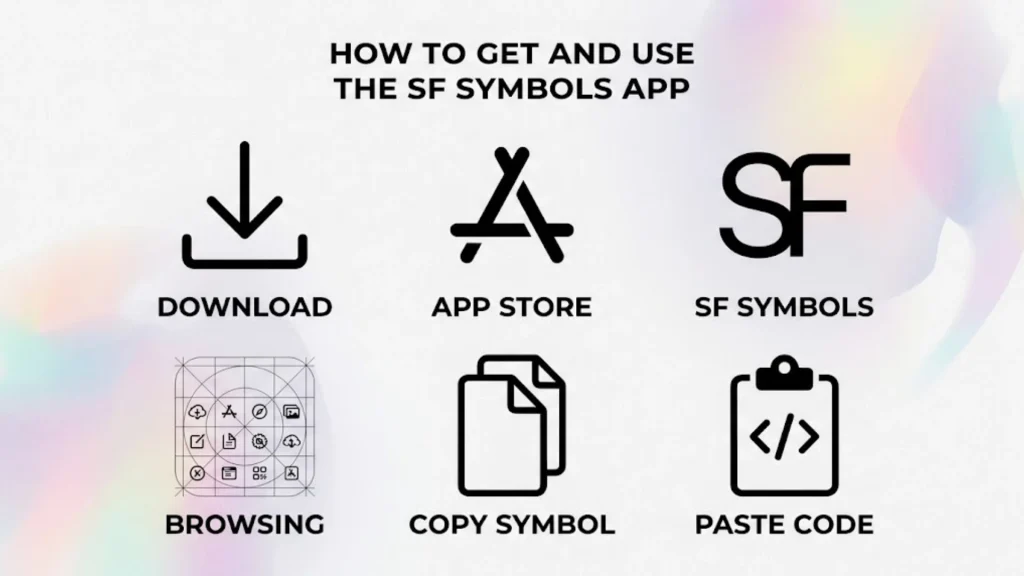
The SF Symbols app is Apple’s official tool for browsing and inspecting the symbol library. It helps developers find suitable icons and learn how to use them correctly.
You can download it from Apple’s SF Symbols page. Apple’s current download information lists macOS Sonoma or later as a requirement, so check the latest system requirements before installing it.
You do not need to keep the app open while your own application runs. Your app uses the symbol names through Apple’s supported frameworks.
How to Search the Apple SF Symbols Library
The library contains thousands of symbols, so finding the right one is an important part of the workflow.
Follow these steps:
- Open the SF Symbols app.
- Search for a concept such as heart, camera, privacy, or download.
- Browse the matching symbols and related variants.
- Select a symbol to inspect its name and available configurations.
- Review its rendering options and platform availability.
- Copy the exact system name for your code.
Apple’s enhanced search can also find symbols from descriptions of what you need. For example, searching for a concept such as “protect personal information” may help you discover relevant privacy symbols even if your search doesn’t match the symbol’s exact name. Availability and search results depend on the version of the app.
How to Find SF Symbols System Names
An SF Symbols system name is the identifier you pass to a development API to display a symbol.
For example, heart, heart.fill, and heart.circle represent related heart designs. The suffix often indicates a variant, but you shouldn’t assume every symbol supports every suffix.
Use the SF Symbols app to verify names rather than guessing. An incorrect name can result in a missing icon or an unexpected fallback.
A good naming workflow is simple:
- Search for the concept you need.
- Check the exact system name.
- Confirm the required variant exists.
- Check the operating system availability.
- Test the symbol in your actual interface.
Do You Need the SF Symbols App to Use System Icons?
No. The app makes discovery and inspection easier, but your code can display supported system symbols without the browsing app being open.
For SwiftUI, you can use Image(systemName:). UIKit supports system symbol images through UIImage(systemName:), while AppKit provides NSImage APIs for macOS.
However, the SF Symbols app remains useful for checking symbol variants, rendering modes, annotations, and compatibility. These details become especially important when supporting older operating systems or creating custom symbols.
SF Symbols Variants: Filled, Outlined, and Enclosed Icons
SF Symbols variants let you display related versions of the same basic design. Common variants include outline, fill, slash, and enclosure styles.
Choosing the right variant helps communicate an action or state without changing the underlying concept.
Filled and Outlined SF Symbols
Many symbols have both outlined and filled versions. The heart family provides a simple example:
| Symbol name | Purpose |
| heart | Outlined heart |
| heart.fill | Filled heart |
| heart.circle | Heart inside a circle |
| heart.circle.fill | Heart and circle with a filled treatment |
| heart.slash | Heart with a slash |
| heart.slash.fill | Filled version of the slashed heart |
A common design pattern uses an outlined heart when an item is not favorited and a filled heart when the user selects it.
Image(systemName: isFavorite ? “heart.fill” : “heart”)
Here, isFavorite is a Boolean value in your app. When it changes, SwiftUI displays the corresponding symbol.
Filled symbols often work well for selected states, while outlined symbols are useful for standard controls. However, the best choice depends on the interface and the meaning of the action.
Circle, Square, Slash, and Badge Variants
Enclosed symbols place an icon inside a shape, such as a circle or square. These designs can improve visibility in compact controls.
Slash variants commonly communicate that a feature is unavailable, disabled, or muted. For example, a microphone with a slash can indicate that audio input is off.
Badge variants add a small visual element to a main symbol. They can represent a new item, an alert, or a related status.
Use variants consistently. If your app uses a filled heart for a selected favorite, avoid switching to an unrelated icon style for the same state elsewhere.
Directional and State-Based SF Symbols
Some symbols indicate direction, movement, or changing states. Examples include arrows, playback controls, and volume indicators.
These icons need careful selection because similar shapes can communicate different actions. A forward arrow, a navigation arrow, and an arrow pointing upward aren’t always interchangeable.
For state changes, choose symbols that clearly distinguish the available actions. A play button that changes to a pause button is a familiar example.
SF Symbols Font Weight, Scale, and Sizing
SF Symbols offers nine symbol weights and three scales, according to Apple’s documentation. The available weight range runs from ultralight to black, while the scales are small, medium, and large.
These settings help developers match icons to surrounding typography and maintain visual consistency.
SF Symbols Font Weights
The symbol weights correspond to the weights of Apple’s San Francisco system font.
| Weight | General appearance | Typical use |
| Ultralight | Extremely thin | Delicate visual treatments |
| Thin | Very light strokes | Light interface styles |
| Light | Light strokes | Subtle icons |
| Regular | Standard strokes | General interface controls |
| Medium | Slightly stronger | Moderate emphasis |
| Semibold | Stronger strokes | Prominent controls |
| Bold | Heavy strokes | Strong emphasis |
| Heavy | Very heavy | High visual weight |
| Black | The heaviest weight | Very bold treatments |
These descriptions are general visual guides. The best weight depends on the specific symbol, its size, and the surrounding text.
In SwiftUI, you can set a symbol’s font weight:
Image(systemName: “star.fill”)
.font(.system(size: 24, weight: .semibold))
This creates a star symbol at 24 points with a semibold weight.
SF Symbols Scale and Size
The symbol scale adjusts a symbol’s size relative to nearby text. Apple’s three scales are small, medium, and large.
Scale and font size aren’t the same thing. Font size determines the overall text size, while symbol scale adjusts the icon’s relative proportions within that context.
In SwiftUI, you can specify an image scale:
Image(systemName: “heart.fill”)
.imageScale(.large)
Use larger scales when an icon needs more emphasis. Use smaller scales when it appears beside text and shouldn’t dominate the line.
Typography and Icon Alignment
Good typography and icon alignment make an interface feel polished. Symbols should sit naturally beside labels, fit inside buttons, and maintain consistent spacing across lists and menus.
SwiftUI’s Label view is often useful when you need an icon and text together:
Label(“Favorites”, systemImage: “heart.fill”)
This is usually preferable to manually arranging an icon and label when you’re building a standard text-and-icon control. SwiftUI can apply the platform’s expected layout and styling behavior.
How to Use SF Symbols in SwiftUI
SF Symbols in SwiftUI are easy to use because the framework provides a direct way to display symbols by their system names.
The basic API is Image(systemName:). You can then apply modifiers to change the symbol’s size, weight, color, and rendering behavior.
Display SF Symbols With Image(systemName:)
Here is a basic example:
import SwiftUI
struct ContentView: View {
var body: some View {
Image(systemName: “magnifyingglass”)
.font(.system(size: 28))
.foregroundStyle(.blue)
}
}
This code displays a blue search symbol at 28 points.
The Image(systemName:) initializer requests a symbol by its system name. The font modifier sets its size, while foregroundStyle applies the chosen style.
You can replace magnifyingglass with another verified name, such as gearshape, camera, or heart.fill.
Use SF Symbols With SwiftUI Label
The Label view combines text with a symbol. This is useful for navigation items, menu entries, settings rows, and buttons.
Label(“Settings”, systemImage: “gearshape”)
You can also use a label inside a button:
Button {
// Perform the settings action.
} label: {
Label(“Settings”, systemImage: “gearshape”)
}
This example shows the interface structure. Replace the comment with the action your app needs to perform.
A label is especially helpful when the icon needs to remain understandable to people who don’t recognize the symbol immediately.
Create a Favorite Button With @State
A favorite button can switch between outlined and filled hearts when the user taps it.
import SwiftUI
struct FavoriteButton: View {
@State private var isFavorite = false
var body: some View {
Button {
isFavorite.toggle()
} label: {
Image(systemName: isFavorite ? “heart.fill” : “heart”)
.font(.title2)
.foregroundStyle(isFavorite ? .red : .primary)
}
.accessibilityLabel(
isFavorite ? “Remove from favorites” : “Add to favorites”
)
}
}
The @State property stores the button’s current state. Tapping the button toggles that value, and SwiftUI updates the displayed symbol.
The accessibility label describes the action instead of relying on the icon alone. This is important because a heart image may not communicate its exact purpose to every user.
Change SF Symbols Colors and Weights
You can adjust an icon’s appearance with standard SwiftUI modifiers.
Image(systemName: “bell.fill”)
.font(.system(size: 22, weight: .medium))
.foregroundStyle(.orange)
This applies a medium font weight and an orange foreground style.
For a production app, consider whether the chosen color will remain readable in light mode, dark mode, and accessibility settings. System-provided semantic colors can be a better choice than fixed colors when the icon needs to adapt to the interface appearance.
SF Symbols Rendering Modes and Colors
SF Symbols rendering modes control how the system applies color to a symbol. Apple provides four main modes: monochrome, hierarchical, palette, and multicolor.
Not every symbol supports every rendering option in the same way. The symbol’s layer structure and the selected mode affect its final appearance. Apple’s SF Symbols design guidance explains these modes and their intended use.
Monochrome Rendering
Monochrome rendering uses one color for the symbol’s artwork. It’s a good fit for many simple controls, such as search, settings, and navigation icons.
Image(systemName: “magnifyingglass”)
.symbolRenderingMode(.monochrome)
.foregroundStyle(.primary)
The .primary style adapts to the surrounding interface, helping the symbol remain visible in different appearance modes.
Hierarchical Rendering
Hierarchical rendering uses levels of opacity to distinguish parts of a layered symbol. It can create visual depth without requiring several unrelated colors.
Image(systemName: “cloud.sun.rain.fill”)
.symbolRenderingMode(.hierarchical)
.foregroundStyle(.blue)
This mode is useful when the symbol contains several visual layers and you want the main shape to stand out from secondary details.
Palette Rendering
Palette rendering allows supported symbol layers to use different colors.
Image(systemName: “person.crop.circle.badge.checkmark”)
.symbolRenderingMode(.palette)
.foregroundStyle(.blue, .green)
The result depends on the symbol’s layers and how the system maps the supplied styles. If a symbol doesn’t support the expected layers, the appearance may differ from what you intended.
Use palette rendering when colors communicate meaningful distinctions, such as a person icon and a separate status badge.
Multicolor Rendering
Multicolor rendering uses the symbol’s built-in color treatment where available. Some symbols have intrinsic colors designed to help communicate their meaning.
Image(systemName: “leaf.fill”)
.symbolRenderingMode(.multicolor)
The exact appearance depends on the selected symbol and platform. A symbol that doesn’t provide an appropriate multicolor design may not look different from its ordinary appearance.
Gradient Rendering With SF Symbols
SF Symbols 7 introduced gradient rendering support. A gradient can add depth and visual interest to a symbol while retaining its basic shape.
Image(systemName: “sun.max.fill”)
.foregroundStyle(
LinearGradient(
colors: [.yellow, .orange],
startPoint: .top,
endPoint: .bottom
)
)
This SwiftUI example applies a gradient style to a symbol. The final appearance depends on the symbol and rendering configuration.
Use gradients carefully. A simple, high-contrast icon is often easier to recognize at small sizes than one with several visual effects.
SF Symbols Animations and Symbol Effects
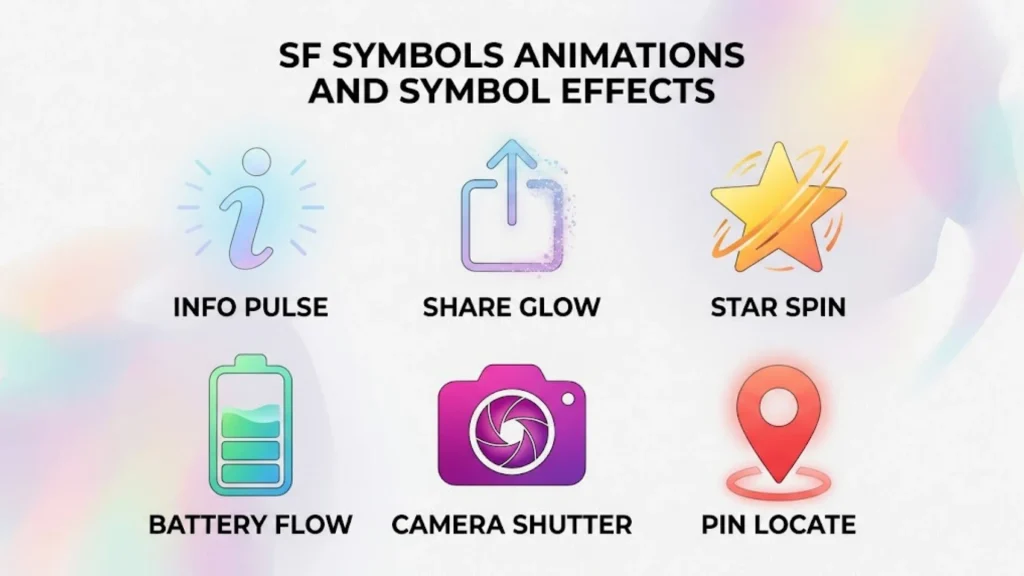
SF Symbols animations add motion to interface icons. They can confirm that an action occurred, show that a process is running, or draw attention to a meaningful state change.
Apple’s symbol effects include animations such as bounce, pulse, scale, wiggle, rotate, breathe, and variable color. SF Symbols 7 also adds Draw On and Draw Off animation presets. Availability depends on the operating system and development APIs you’re targeting. See Apple’s Symbols framework documentation for supported effects and behavior.
How to Animate SF Symbols in SwiftUI
SwiftUI provides the .symbolEffect modifier for applying supported symbol animations.
For example, you can make a favorite icon bounce when the user changes its state:
import SwiftUI
struct AnimatedFavoriteButton: View {
@State private var isFavorite = false
var body: some View {
Button {
isFavorite.toggle()
} label: {
Image(systemName: isFavorite ? “heart.fill” : “heart”)
.font(.title)
.foregroundStyle(isFavorite ? .red : .primary)
.symbolEffect(.bounce, value: isFavorite)
}
.accessibilityLabel(
isFavorite ? “Remove from favorites” : “Add to favorites”
)
}
}
The value parameter tells SwiftUI to run the effect when the observed value changes. Here, toggling isFavorite triggers the bounce effect.
This is a practical example of state-based animation. The motion reinforces a real action instead of running continuously without purpose.
Common SF Symbols Animation Effects
| Effect | What it does | Example use |
| Bounce | Moves or scales the symbol briefly | Confirming a favorite action |
| Pulse | Changes the symbol’s visual presence | Drawing attention to a status |
| Scale | Changes the symbol’s size | Highlighting a selected item |
| Wiggle | Moves the symbol along an axis | Drawing attention to a control |
| Rotate | Rotates a symbol or supported layers | Showing an active process |
| Breathe | Changes size and opacity smoothly | Indicating ongoing activity |
| Variable color | Changes the appearance of layers | Communicating signal or progress changes |
| Appear | Animates a symbol into view | Introducing a new status |
| Disappear | Animates a symbol out of view | Removing a temporary indicator |
| Draw On | Reveals symbol artwork along its paths | Revealing a graphic or progress indicator |
| Draw Off | Animates symbol artwork out of view | Dismissing or removing an icon |
Not every effect communicates the same thing. For example, a repeating rotation may suggest ongoing work, while a bounce usually works better as brief feedback after an action.
How to Use the SF Symbols Bounce Effect
The bounce effect is useful for small, meaningful interactions. A favorite button, a completed task, or a selected control can bounce briefly to confirm the change.
Image(systemName: “checkmark.circle.fill”)
.symbolEffect(.bounce, value: isComplete)
In this example, isComplete is a value defined in your view. When it changes, the symbol effect responds.
Avoid making every icon bounce whenever a screen appears. Too much motion competes for attention and can make an interface tiring to use.
Interactive and State-Based Symbol Animations
Choose an animation that matches the action:
- Use a brief bounce to confirm a selection.
- Use a progress-related effect to indicate ongoing work.
- Use a transition when a control changes from one state to another.
- Use a gentle repeating effect only when an ongoing state needs attention.
- Avoid relying on animation alone to communicate success, failure, or completion.
Always test animations in context. An effect that looks good on a large icon may feel distracting on a small toolbar button.
SF Symbols Variable Values and Dynamic Indicators
Variable symbols can change their appearance to reflect a changing value. They are useful for information such as signal strength, sound level, battery capacity, or progress when the selected symbol supports variable rendering.
For example, a Wi-Fi symbol may display different levels of signal strength. A speaker symbol may show different amounts of sound output.
How Variable SF Symbols Work
A variable symbol uses a value to control its appearance. Many variable-value examples use a range from 0.0 to 1.0, where 0.0 represents the minimum and 1.0 the maximum.
The value should represent meaningful information. If the app measures battery capacity, a battery symbol can reflect that capacity. If the app measures a network connection, a supported signal symbol can show its strength.
A variable symbol is not a substitute for the underlying data. For example, changing the appearance of a Wi-Fi icon does not measure signal strength. Your app must obtain or calculate the value and then pass it to the symbol.
How to Use Variable Value SF Symbols in SwiftUI
SwiftUI provides an initializer that accepts a variable value for supported symbols.
import SwiftUI
struct SignalStrengthView: View {
@State private var signalStrength = 0.65
var body: some View {
VStack(spacing: 16) {
Image(
systemName: “wifi”,
variableValue: signalStrength
)
.font(.system(size: 36))
Slider(value: $signalStrength, in: 0.0…1.0)
Text(“Signal: \(Int(signalStrength * 100))%”)
}
.padding()
}
}
This example lets the user move a slider to change the value displayed by a Wi-Fi symbol. It demonstrates the technique; a real application should connect the value to actual connection data where available.
Not all symbols support variable values. Check the SF Symbols app and Apple’s documentation before choosing a symbol for this feature.
Variable Color Versus Variable Values
These terms describe related but different ideas.
- Variable value: Supplies changing information to a symbol that supports it.
- Variable color: Changes the visual treatment of symbol layers to communicate progression or changing states.
- Symbol animation: Adds motion to the symbol, sometimes in response to a changing value.
For example, an audio app might use a variable speaker symbol to represent volume and animate the symbol when playback begins. These features should complement the actual audio state rather than display misleading information.
SF Symbols Magic Replace and Symbol Transitions
Magic Replace is an animation that transitions between related SF Symbols by taking advantage of shared visual elements. It can make a state change feel smoother than abruptly swapping one icon for another.
For example, a microphone icon may change to a muted microphone. A badge may appear or disappear, or a slash may be drawn across an icon to show that a feature is disabled.
How Does Magic Replace Work in SF Symbols?
Magic Replace looks for relationships between the old and new symbols. When the shapes support a meaningful transition, the animation can transform shared elements instead of treating both symbols as completely unrelated images.
If the symbols don’t have a suitable relationship, SwiftUI can use a more general replacement animation instead. The result depends on the symbols and the supported transition behavior.
Common uses include:
- Switching between play and pause.
- Changing a microphone from active to muted.
- Showing or removing a notification badge.
- Switching a control between enabled and disabled states.
- Adding or removing a slash or related symbol element.
Magic Replace is especially helpful when the two symbols communicate different states of the same control.
How to Use Symbol Replacement in SwiftUI
SwiftUI supports symbol content transitions through .contentTransition(.symbolEffect(.replace)).
import SwiftUI
struct PlayPauseButton: View {
@State private var isPlaying = false
var body: some View {
Button {
isPlaying.toggle()
} label: {
Image(systemName: isPlaying ? “pause.fill” : “play.fill”)
.font(.largeTitle)
.contentTransition(.symbolEffect(.replace))
}
.accessibilityLabel(isPlaying ? “Pause” : “Play”)
}
}
The button switches between play and pause symbols. The content transition animates the replacement when the displayed image changes.
For a production app, connect isPlaying to the real playback state rather than treating the icon as the source of truth. The control should accurately reflect whether media is playing.
SF Symbols Accessibility and Localization
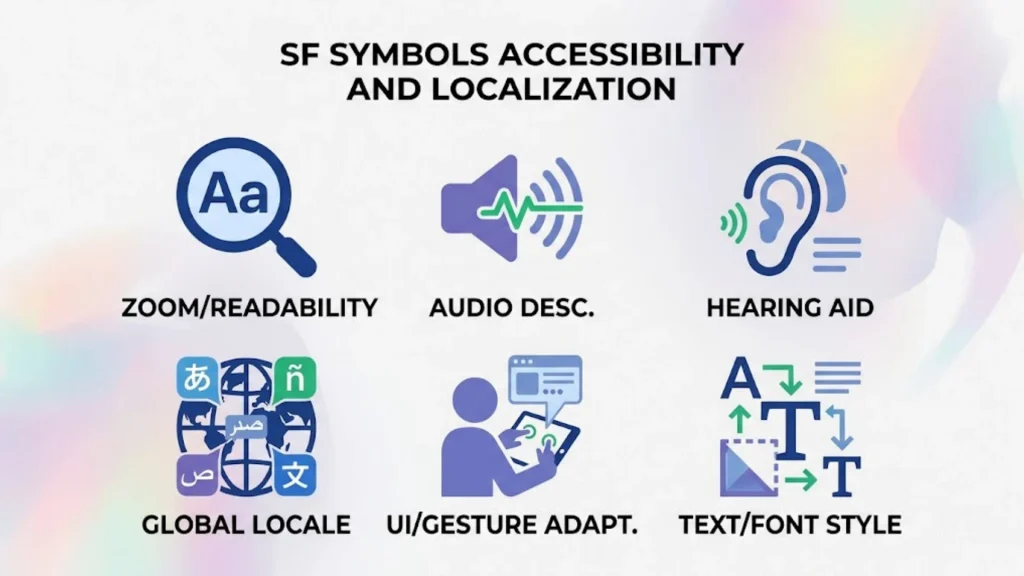
Icons can make an interface easier to scan, but not everyone interprets the same visual symbol in the same way. SF Symbols accessibility means ensuring that icons remain understandable and usable for people with different needs.
Localization matters too. Symbols may need to adapt to a user’s language, writing direction, or regional interface conventions.
Accessibility Labels for SF Symbols
When a symbol acts as a button, users need to understand what the control does. VoiceOver reads accessible descriptions aloud, helping people navigate an app without relying on visual appearance alone.
In SwiftUI, use .accessibilityLabel() to provide a meaningful description when needed.
Button {
// Start recording.
} label: {
Image(systemName: “mic.fill”)
}
.accessibilityLabel(“Start recording”)
The label describes the action, not merely the visual shape. “Start recording” gives more useful information than “Microphone icon.”
If a button already contains clear text, the system may provide an appropriate accessible name from that text. Avoid adding redundant labels that cause VoiceOver to repeat the same information.
SF Symbols and Dynamic Type
Dynamic Type allows people to choose a text size that suits their needs. Your interface should accommodate those settings without clipping labels or making controls difficult to use.
SF Symbols can work alongside scalable system typography, but developers still need to test their layouts. Fixed-size icons placed beside very large text can create alignment or spacing problems.
Good practices include:
- Use appropriate system font styles where possible.
- Test the interface at larger accessibility text sizes.
- Give important buttons enough space to remain usable.
- Avoid shrinking icons until their meaning becomes unclear.
- Test VoiceOver navigation and focus order.
SF Symbols Localization and Right-to-Left Languages
Apple’s symbol library includes language-aware designs and symbols that adapt to certain reading directions. This can help interfaces feel natural in languages that read from right to left.
However, not every directional symbol should automatically flip. An arrow representing the next page in a reading sequence may need to follow the interface direction, while an arrow representing a fixed physical direction may need to remain unchanged.
When building a localized app:
- Test both left-to-right and right-to-left layouts.
- Use directional symbols that match the action.
- Verify the symbol’s behavior in the target language.
- Avoid hard-coding layout assumptions based only on English.
- Check localized interface labels and accessibility descriptions.
How to Create Custom SF Symbols
Sometimes the built-in SF Symbols library doesn’t include the exact icon your app needs. In that case, you can create a custom symbol using Apple’s supported workflow.
Custom symbols are useful for product-specific actions, unique interface concepts, or artwork that fits the SF Symbols design style but isn’t available in the standard library.
When Should You Create a Custom SF Symbol?
Before creating custom artwork, search the system library thoroughly. A built-in symbol is usually easier to maintain and more consistent with native Apple interfaces.
Consider a custom symbol when:
- No built-in symbol clearly represents the action.
- Your app has a unique feature that needs its own icon.
- A custom shape improves recognition.
- The icon must match a product-specific concept.
- Existing symbols would confuse users or misrepresent the action.
Don’t create a new icon just to make a common action look different. Familiar symbols can make navigation and controls easier to understand.
The Apple Workflow for Custom SF Symbols
Apple’s documented workflow starts with a compatible symbol template. You can export a template for a suitable symbol, edit its vector artwork in a compatible design tool, and import the result into the SF Symbols app for inspection.
A typical workflow looks like this:
- Find a system symbol with a similar structure.
- Export its template using the SF Symbols app.
- Edit the vector artwork in a compatible design tool.
- Follow the template’s structure and naming conventions.
- Annotate layers for the rendering modes you want to support.
- Preview the symbol across supported weights and scales.
- Test the symbol in your app.
Apple recommends keeping custom symbols simple, recognizable, inclusive, and directly related to their intended action or content. The artwork should also match the system library’s level of detail, optical weight, alignment, and perspective.
Custom Symbol Weights, Scales, and Rendering Layers
A well-designed custom symbol should remain legible at different sizes. Its strokes and proportions should also look balanced when rendered at different weights.
Layer annotations allow supported custom symbols to work with rendering modes and some animation effects. For example, you can assign layers to different visual levels for hierarchical rendering or different colors for palette rendering.
Custom symbol animation needs extra testing. A symbol that looks correct when static may behave unexpectedly when its layers move or appear one at a time.
Apple also identifies certain symbols that depict Apple products or features as noncustomizable. You can use these symbols within the applicable rules, but you must not modify them. Check the SF Symbols app for usage restrictions before editing a template.
SF Symbols Operating System Compatibility
Not every symbol is available on every Apple operating system. New releases add symbols and features, and existing names or recommendations can change.
SF Symbols operating system compatibility is important because an icon that works on a new device may be unavailable on an older device supported by your app.
How to Check SF Symbols Availability
Before shipping a symbol:
- Search for it in the SF Symbols app.
- Inspect the symbol’s availability information.
- Check whether the variant and rendering mode you need are supported.
- Confirm the relevant API is available for your deployment target.
- Test the app on the oldest supported operating system.
A symbol’s availability and the availability of a particular animation are not necessarily the same. Your code may need to account for the symbol itself and the effects you apply to it.
Why Is an SF Symbol Not Appearing in an App?
Common causes include:
- Incorrect system name: The name doesn’t match a supported symbol.
- Unsupported operating system: The symbol was introduced after your minimum deployment version.
- Missing variant: The requested fill, slash, or enclosure form doesn’t exist.
- Platform differences: The symbol or feature isn’t supported on the target platform.
- Custom asset problems: The symbol wasn’t imported or configured correctly.
Start by checking the exact name in the SF Symbols app. If the symbol is too new for your deployment target, choose a compatible alternative or provide a fallback image.
For older operating systems, you can use availability checks to choose between a system symbol and an image asset. Apple’s UIKit symbol configuration guide also discusses symbol availability and fallback approaches.
Light Mode, Dark Mode, and Fallback Symbols
Symbols should remain legible in both light and dark appearances. System styles can help icons adapt automatically, while fixed colors may require extra testing.
Check that:
- The icon contrasts with its background.
- Fine details remain visible at small sizes.
- The symbol doesn’t disappear against a similar color.
- A fallback image communicates the same action.
- Selected and disabled states remain distinguishable.
Use shape, text, and appropriate contrast together instead of relying on color alone to communicate important information.
SF Symbols Versus Custom Icons
SF Symbols versus custom icons is a practical design decision. The best option depends on whether your app needs a familiar system control or original artwork.
| Consideration | SF Symbols | Custom icons |
| Design consistency | Follows Apple’s symbol style | Depends on your design system |
| Development effort | Often quick to implement | Requires artwork and asset management |
| Appearance options | Supports available weights, scales, and rendering modes | Depends on how the assets are designed |
| Animation | Supports compatible system symbol effects | Requires compatible artwork or custom animation work |
| Branding | Best for interface concepts, not unique branding | Better for distinctive brand artwork |
| Compatibility | Depends on system version and symbol availability | Depends on the assets you provide |
| Maintenance | Benefits from Apple’s system integration | Your team manages the artwork and variants |
When SF Symbols Are the Better Choice
Use SF Symbols for common actions such as search, share, settings, navigation, and media controls. Familiar shapes help users understand what a button does without learning a new visual language.
They’re also useful when you want icons that align with Apple’s system typography and work naturally with supported interface frameworks.
When Custom Icons Are Better
Custom icons make sense when a product needs a distinct visual identity or when a standard symbol doesn’t communicate the intended meaning clearly.
For example, a drawing app might need a unique tool icon that represents a proprietary brush. A standard symbol may not accurately communicate the tool’s behavior.
You can also combine standard symbols with custom artwork, provided the result follows Apple’s rules and remains clear to users.
SF Symbols Licensing and App Icon Alternatives
The SF Symbols license is an important part of using Apple’s library responsibly. Availability of the app and symbols does not mean every type of use is permitted.
Read the current terms linked from Apple’s SF Symbols page before distributing an app or using symbols outside the intended interface context.
Are SF Symbols Free to Use?
Apple provides the SF Symbols app as a developer resource, but you must follow its license agreement. The applicable terms determine how the symbols may be used and what restrictions apply.
In particular, Apple warns against using SF Symbols—or images confusingly similar to them—in app icons, logos, or other trademarked uses. Certain symbols depicting Apple products and features also have customization restrictions.
For a safe workflow:
- Read the current SF Symbols license.
- Check restrictions on individual symbols.
- Use symbols for permitted interface purposes.
- Avoid treating a system symbol as your brand logo.
- Create original artwork when you need a distinctive app icon.
- Recheck the current rules before using symbols in marketing or promotional materials.
Don’t assume that a symbol’s presence in Apple’s tool automatically authorizes every commercial use.
SF Symbols Versus App Icons
An interface symbol and an app icon serve different purposes. A system symbol represents an action or concept within an interface. An app icon identifies your product on the Home Screen, in app listings, and in other places where the app appears.
For app icons, create original artwork that follows Apple’s current app icon guidance. Apple’s Icon Composer is a separate tool for creating layered app icons for supported Apple platforms; it is not a replacement for the SF Symbols app.
If you need a distinctive brand mark, design original artwork rather than turning an SF Symbol into a logo.
SF Symbols and Apple’s Human Interface Guidelines
Apple’s Human Interface Guidelines (HIG) help developers build interfaces that feel familiar, usable, and consistent across Apple platforms.
SF Symbols support those goals, but using a system icon doesn’t automatically make an interface well designed. The symbol still needs to fit its context and communicate the right action.
Follow these principles:
- Choose symbols people can recognize.
- Use filled and outlined variants consistently.
- Provide labels for icon-only controls when needed.
- Keep icons readable at their displayed size.
- Use color and animation to communicate meaningful states.
- Test accessibility and localization.
- Check symbol availability before shipping.
You can explore Apple’s official Human Interface Guidelines for broader advice on interface controls, icons, accessibility, and layout.
How to Prompt an AI Coding Agent to Use SF Symbols
AI coding tools can generate SwiftUI interfaces quickly, but they may invent symbol names or use APIs that don’t match your deployment target. Clear instructions help reduce these errors.
When asking an AI coding agent to build an Apple interface, specify:
- The framework: SwiftUI, UIKit, or AppKit.
- The minimum supported operating system.
- The intended action for each icon.
- The exact system names when you know them.
- Whether symbols should be filled, outlined, or multicolored.
- Accessibility labels for icon-only controls.
- Fallback behavior for unavailable symbols.
- Whether an animation should run after a state change.
A useful prompt might be:
Build a SwiftUI settings screen using SF Symbols for standard interface controls. Use valid system symbol names, keep icons consistent with Apple’s design conventions, provide accessibility labels for icon-only buttons, and check compatibility with the app’s minimum deployment target. Include fallbacks where needed and avoid using system symbols as app branding.
After the code is generated, inspect the symbol names in Apple’s tool and test the interface on the intended operating systems. An AI-generated icon name should never be treated as valid without verification.
Frequently Asked Questions About SF Symbols
What Are SF Symbols in Apple Development?
SF Symbols are Apple’s library of system interface icons. Developers use them to represent common actions, objects, and states in native Apple apps.
What Are SF Symbols Used For?
They appear in buttons, menus, navigation bars, toolbars, tab bars, and labels. They can also show status information, such as microphone state, download progress, or media playback.
How Do You Use SF Symbols in SwiftUI?
Use Image(systemName:) to display a symbol by its system name. You can then adjust its size, weight, color, rendering mode, and supported animation effects.
Do You Need the SF Symbols App to Use System Icons?
No. You can use supported system names directly in code. The app is useful for finding symbols, inspecting variants, checking availability, and creating custom symbols.
How Do You Change SF Symbols Colors?
In SwiftUI, use modifiers such as .foregroundStyle() and .symbolRenderingMode(). The final appearance depends on the selected symbol, its layer structure, and the rendering mode.
How Do You Animate SF Symbols in SwiftUI?
Use .symbolEffect() for supported symbol effects, such as bounce or pulse. Use a state value to trigger an effect when an action or status changes.
What Is Magic Replace in SF Symbols?
Magic Replace is a symbol transition that uses shared visual elements to animate between related symbols. It works especially well when an icon changes state, such as a microphone becoming muted.
Can You Create Custom SF Symbols?
Yes. Apple’s workflow allows developers to create compatible custom symbols from templates and edit their vector artwork. You must follow the required structure, annotations, and usage restrictions.
Can SF Symbols Be Used in UIKit and AppKit?
Yes. SF Symbols are supported through Apple’s frameworks, including SwiftUI, UIKit, and AppKit. Check the relevant API and operating system availability for your target platform.
Are SF Symbols Free to Use?
Apple provides the SF Symbols app as a developer resource, but use is governed by its license. Review the current terms and restrictions before using symbols in an app, logo, marketing material, or other context.
Can You Use SF Symbols for an App Icon?
Do not use SF Symbols, or artwork confusingly similar to them, as app icons, logos, or other trademarked artwork where Apple’s license prohibits that use. Create original app icon artwork and follow Apple’s current icon guidance.
Why Is an SF Symbol Not Appearing in an iOS App?
Check the exact system name, the symbol’s operating system availability, and whether the requested variant exists. For older deployment targets, provide a supported alternative or a fallback image.
How Do SF Symbols Support Accessibility and Localization?
Symbols can align with system typography and include language-aware variants. Developers should still provide appropriate accessibility labels, test VoiceOver, support Dynamic Type, and verify right-to-left layouts.
Conclusion: Using SF Symbols Effectively
SF Symbols give Apple developers a flexible way to create consistent interfaces without designing every common icon from scratch. The library includes thousands of symbols, multiple weights and scales, four rendering modes, and a range of supported animation effects.
To use them well, start with the official SF Symbols app, confirm each system name, and check operating system compatibility. Choose variants that clearly communicate states, use rendering modes carefully, and animate icons only when motion helps explain an action or change.
For more advanced interfaces, variable symbols and Magic Replace can make feedback more expressive. Custom symbols can fill genuine gaps, but they need careful design, accessibility testing, and compliance with Apple’s license.
Above all, treat icons as part of the user experience. The best symbol is not the most decorative one; it’s the one that helps people understand what they can do and what happens next.

Hello, I’m Rowan Sinclair, a passionate writer and lifelong admirer of the wisdom found in great quotes. I believe that words have the ability to inspire change, spark creativity, and connect people across cultures and generations.
I enjoy writing about motivational quotes, famous sayings, and lessons from history’s most influential thinkers. Every article I create is driven by my desire to help readers discover meaningful insights that they can apply to their own lives.
When I’m not writing, I spend my time reading biographies, exploring classic literature, and collecting memorable quotes that deserve to be shared with the world.
I am the author of Voices That Inspire and A Collection of Timeless Thoughts, two books that celebrate the enduring power of words and the stories behind them.
 Asher Monroe
 Sienna Brooks