If you want to bring Texas history into your classroom without organizing an in-person field trip, the Bullock Texas State History Museum offers a practical option: distance learning programs led by Museum Educators. These virtual experiences connect students with museum-based education through online instruction, presentations, and interactive learning.
Teachers can explore available virtual learning classes, review program details, and look for reservation options through Connect2Texas. The platform connects schools with educational content providers, including museums and cultural organizations. Its event calendar helps teachers search by provider, date, grade level, content area, cost, and registration status.
Booking a session involves more than choosing a date. You may need to create a Connect2Texas account, review program availability, provide school and teacher information, and prepare classroom technology. This guide explains each step so you can plan a smooth virtual museum experience for your students.
What Is the Bullock Museum Distance Learning Program?
The Bullock Texas State History Museum is located in Austin, Texas. It helps students explore the state’s history and culture through exhibitions, educational resources, school programs, and virtual learning opportunities.
Its museum distance learning service brings a Museum Educator into a classroom through an online connection. This gives students an opportunity to learn from museum professionals even when their school cannot visit the museum in person.
The program is especially useful for schools that want to add museum-based education to their curriculum without arranging transportation, travel schedules, or an onsite visit. Students can participate from a school classroom or another suitable learning environment, depending on the session’s connection options.
The museum’s FY 2024 annual report recorded 14,869 students reached through 345 Distance Learning sessions. This figure shows the scale of the program during that fiscal year. It is a historical annual-report figure, not a guarantee of current program volume or availability.
What Students Learn Through Virtual Museum Programs
The Bullock Museum focuses on the story of Texas. Its educational experiences can help teachers connect classroom topics with historical people, events, artifacts, and cultural developments.
Depending on the program selected, students may explore:
- Texas history and historical events
- People and communities that shaped the state
- Historical artifacts and their significance
- Cultural traditions and changing communities
- The relationship between history, science, language, and the arts
- Museum collections and the stories behind them
A virtual session can add context that a textbook alone may not provide. Students can hear explanations from a Museum Educator, view presentation materials, and ask questions when the selected session supports interactive participation.
Who Can Participate?
The intended audience depends on the individual program. Some sessions may target particular grade levels, while others may serve a broader student audience.
Teachers should review the program description before making a reservation. Check the listed grades, learning objectives, student capacity, connection type, and any other participation instructions.
The Bullock Museum’s Distance Learning program has connected with students beyond the Austin area. Its FY 2024 annual report describes the service as a way to reach classrooms regardless of location. However, teachers should still confirm eligibility and connection arrangements for their own schools.
How Bullock Museum Distance Learning Reservations Work
The booking process generally starts with finding a suitable program and checking whether a date is available. Connect2Texas provides an online network where teachers can explore educational providers and their offerings.
It is important to understand the difference between a program listing and a scheduled event.
| Connect2Texas section | What it helps you do |
| Programs | Explore program options offered by providers |
| Events | Find scheduled sessions with dates and times |
| Program Filter | Narrow results by provider, date, grade, subject, cost, and status |
| Contact Us | Direct registration or provider questions to the appropriate contact |
The Programs section can show options that are not currently posted as scheduled events. In other words, finding a program in the catalog does not automatically mean that a session is open for registration on your preferred date.
The Events calendar displays scheduled opportunities. Connect2Texas also advises visitors to contact the provider if a program is not offered at a suitable time. This distinction matters when planning distance learning reservations around school calendars, testing periods, holidays, and classroom schedules.
Understand Program Availability and Registration Status
Before choosing a session, review its current listing carefully. Look for:
- Program title and description
- Provider name
- Event date
- Available class time
- Grade level
- Content area
- Cost, if any
- Registration status
- Connection or viewing option
The Events page includes a registration-status filter, including an option for registration-open events. Use it to narrow your search, but always open the individual event to check its details.
Do not assume that every program is free or that every listed program has an open reservation. Connect2Texas explains that fees, when applicable, are paid directly to the provider. The provider handles billing according to the information supplied during registration.
Are Reservations First-Come, First-Served?
Teachers may encounter first-come, first-served reservations as a general booking policy on educational platforms. However, do not assume that this is the Bullock Museum’s rule for every session.
The event listing or provider’s instructions should determine how a specific reservation is handled. If the listing does not explain whether spaces are limited, contact the provider before relying on an assumed booking policy.
The safest approach is to register as early as practical, especially when a particular date is important to your lesson plan.
How to Create a Free Connect2Texas Account
A Connect2Texas account helps teachers use the platform’s registration process. If you plan to reserve an event, begin by visiting the official website and locating the account or registration option.
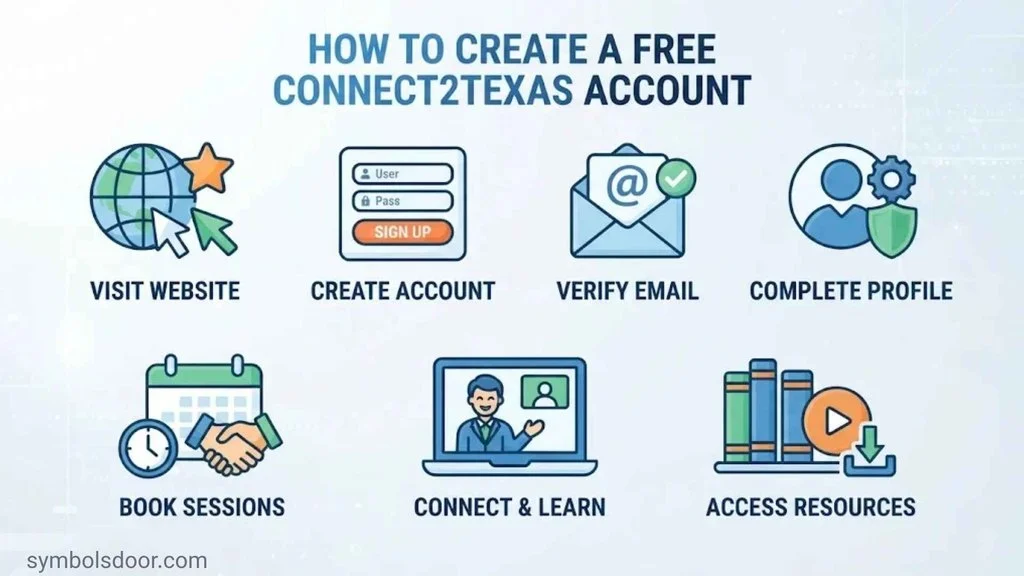
Use the following general steps:
- Open the Connect2Texas website.
- Find the account registration or sign-in area.
- Select the option to create an account, if you do not already have one.
- Enter the information requested by the registration form.
- Follow any instructions provided to complete account setup.
- Sign in before proceeding with an event reservation.
The exact account fields and screen layout may change. Follow the current instructions on the website rather than relying on screenshots or outdated tutorials.
Why Teachers Should Create an Account Before Searching
Creating an account ahead of time can make the online registration process easier. You can focus on reviewing programs instead of stopping midway through a reservation to complete account setup.
It also helps to prepare your school information before starting. Keep your campus details, contact information, grade level, and expected student count nearby.
If you already have an account, check that you can sign in before selecting an event. If you have trouble accessing it, use the platform’s current account-support options.
How to Find Bullock Museum Virtual Learning Classes
The Connect2Texas Events page is the main place to check scheduled sessions. Its Program Filter helps teachers narrow down a large event calendar and locate relevant Bullock Museum distance learning opportunities.
Follow these steps:
- Visit the Connect2Texas Events page.
- Find the Program Filter.
- Open the provider selection field.
- Look for Bullock Texas State History Museum.
- Choose a date range that fits your school calendar.
- Add a keyword if you are searching for a particular topic.
- Select relevant grade levels and content areas.
- Review cost and registration-status options.
- Select Apply to display matching events.
- Open a suitable event to read its complete details.
The current Events page lists filters for provider, event date, keyword, cost, status, grade level, and content area. Available grade options range from pre-kindergarten through Grade 12, with an adults option also shown. Content-area filters include subjects such as social studies, science, mathematics, art, music, health and physical education, and English/language arts.
How to Use the Program Filter Effectively
You do not need to use every filter. Choose only the ones that help you find a suitable session.
For example, a fourth-grade teacher planning a Texas history lesson might:
- Select Bullock Texas State History Museum as the provider.
- Choose a date range that falls within the teaching unit.
- Select fourth grade.
- Choose social studies as the content area.
- Enter a relevant topic keyword, if needed.
- Apply the filters and review the results.
If the results are empty, broaden your search. Try a longer date range, remove a keyword, or review the provider’s program catalog.
Events Versus Program Options
This distinction can save time.
The Events section lists scheduled opportunities. The Programs section helps you explore program options, including offerings that may not have a posted event date.
If you find an appropriate program in the catalog but cannot see a matching event, do not assume the program has been discontinued. The provider may be able to discuss a suitable date or explain whether the program is currently offered.
How to Reserve a Bullock Museum Distance Learning Program
Once you find a suitable event, review its details before starting program registration. Make sure the session matches your students’ grade level, lesson topic, schedule, and classroom technology.
A typical reservation workflow looks like this:
Review the Event Details
Open the event listing and read the complete description. Check the following information:
- Program title
- Educational topic
- Intended grade levels
- Event date and time
- Registration status
- Cost or fee information
- Connection or viewing method
- Registration deadline, if listed
- Special instructions from the provider
Pay attention to the time zone. Connect2Texas currently states that event times on its calendar are listed in Central Standard Time (CST). If your school operates in another time zone, convert the listed time before adding it to your calendar. Also check the event details for any updated time-zone instructions.
Complete the Online Registration
After confirming that the event fits your needs:
- Sign in to your Connect2Texas account.
- Open the selected event.
- Choose the registration option shown on the page.
- Enter the requested teacher and school information.
- Provide the grade level and number of students, if requested.
- Review the event and contact details.
- Submit the registration form.
- Save any confirmation or follow-up instructions.
The exact steps may differ between events. Follow the instructions on the individual listing because providers can have different registration and connection arrangements.
Save Your Reservation Details
After submitting a request, keep a record of the information associated with the event.
Save or note:
- Event title
- Scheduled date and time
- Registration confirmation
- Provider contact details
- Connection instructions
- Any testing appointment
- Payment or invoice information, if applicable
Do not treat a form submission as proof that a reservation is confirmed unless the platform or provider confirms it. If you do not receive the expected confirmation, contact the appropriate support team.
What Information Is Required for Distance Learning Registration?
The information requested can vary by event and provider. Teachers should use the actual registration form as the final guide.
Preparing common details in advance can make distance learning registration faster and reduce the chance of submitting incomplete information.
Teacher and Program Coordinator Information
The form may request details about the person responsible for organizing the virtual class.
Prepare:
- First and last name
- Job title or role
- School email address
- Phone number
- Program coordinator information, if a different person handles the booking
Use an email address that you check regularly. Providers may send confirmation messages, connection instructions, schedule changes, or technical information to the registered teacher.
School and Campus Information
You may also need to identify the school participating in the program.
Common details include:
- School or district name
- Campus name
- School address
- City
- State
- School phone number
- Relevant Education Service Center information, if requested
Some Texas schools work with an Education Service Center (ESC) for educational technology and videoconferencing support. Connect2Texas is a service provided by Education Service Center Region 11.
However, do not assume that every Bullock Museum registration requires an ESC number. Enter an Education Service Center number or ESC number only when the form asks for it or the relevant connection arrangement requires it.
Student and Class Information
Accurate student information helps the provider understand the audience and prepare an appropriate session.
Depending on the form, you may be asked for:
- Grade level
- Number of students
- Student enrollment or expected attendance
- Number of participating classrooms
- Preferred class date
- Preferred class time
Use a realistic student count. If several classrooms will join from the same campus, clarify how many students and classrooms will participate when the form allows additional details.
Contact and Technology Information
Some programs require coordination between the teacher and the school’s technical staff.
Be ready to provide a technology contact if requested. This could be the school’s instructional technology specialist, IT coordinator, or another staff member responsible for the virtual classroom setup.
That person may help arrange a test connection, check classroom equipment, and troubleshoot problems before the session.
How to Schedule a Custom Virtual Museum Class
Sometimes the available calendar does not match your school’s timetable. You may find the right educational program but no suitable date, or the posted sessions may conflict with testing, holidays, or other school activities.
In that situation, ask the provider about custom class scheduling.
Connect2Texas advises visitors to contact the provider directly when a program is not offered on a suitable day or time. Its Contact Us page also identifies provider questions as the appropriate route for requests about specific dates and times.
What to Include in a Custom Scheduling Request
A clear request gives the provider enough information to understand your needs.
Include:
- Your first and last name
- School and campus name
- School email address
- Phone number
- Program title or topic
- Grade level
- Number of students
- Preferred date
- Alternative dates
- Preferred time
- Any relevant classroom technology details
If the program is not listed under scheduled events, mention that you found it in the program catalog or explain where you saw the offering.
What If the Date Is Not Listed?
An unlisted program date does not necessarily mean that the provider cannot schedule a session. It may simply mean that the date has not been posted as a public event.
Contact the Bullock Museum through its current official distance-learning contact details. Ask whether the program is available for a custom session and whether your preferred date can be accommodated.
A custom date is a request, not a confirmed booking. Wait for the provider’s response before telling students or adding the session as a confirmed event on the school calendar.
What Happens After You Submit a Reservation?
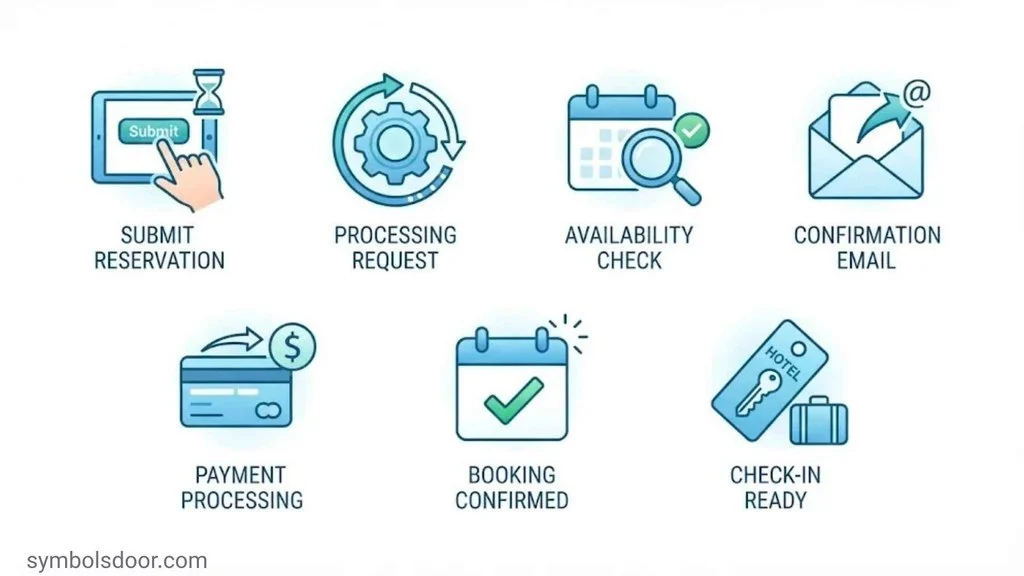
After completing educational program registration, check your email and Connect2Texas account for any confirmation or follow-up information.
The provider may need to communicate details about the session, connection method, classroom setup, or technical testing.
Your next steps should include:
- Check for a registration confirmation.
- Verify the event date and time.
- Review the connection method.
- Read any instructions sent by the provider.
- Share relevant details with the school’s technology contact.
- Arrange a test connection if required or recommended.
- Add the session to the classroom calendar.
- Prepare students for the lesson.
If the session has a fee, review the provider’s payment instructions. Connect2Texas states that program payments are made directly to the provider, which may invoice the school using the billing information supplied during registration.
Keep the Teacher and Technology Coordinator Informed
The registered teacher should know how to access the session and whom to contact if something goes wrong.
The technology coordinator should understand the connection method and equipment requirements. This is especially important when the session uses a classroom videoconferencing system instead of a standard computer-based stream.
A short planning conversation before the event can prevent confusion on the day of the program.
Technical Requirements for Bullock Museum Virtual Classes
The exact technical requirements depend on the event’s connection option. A live videoconference may need different equipment from a live stream or recording.
Connect2Texas describes several connection and viewing options. Teachers should check the event listing and follow the provider’s instructions instead of assuming that every program uses the same platform.
Internet Access and Connection Quality
A stable internet connection is essential for online instruction. Weak connectivity can cause frozen video, delayed audio, or interrupted participation.
Before the session:
- Confirm that the classroom has reliable internet access.
- Check the connection in the room where students will participate.
- Close unnecessary applications that use bandwidth.
- Avoid large downloads or updates during the session.
- Use a hard-wired connection when practical and supported.
- Test Wi-Fi if a wired connection is unavailable.
A hard-wired internet connection can provide a more consistent connection than Wi-Fi because it avoids some wireless interference and signal issues. However, a reliable school Wi-Fi network can also work well.
The important point is not simply whether the connection is wired or wireless. It is whether the connection remains stable during the session.
Computer, Laptop, Tablet, and Mobile Phone Compatibility
The device you use should support the selected connection method.
Common options include:
- Desktop computer
- Laptop
- Tablet
- Mobile phone
A desktop or laptop is often a practical choice for a classroom because it can connect to a projector, smartboard, external microphone, or speaker system.
Connect2Texas specifically notes that live-streamed programs can be viewed using a computer or mobile device. It recommends watching the program on one computer and connecting that computer to a television or projector for classroom viewing.
Do not assume that every device supports every event. Check the provider’s instructions, browser requirements, and any software requirements before the scheduled class.
Camera and Microphone
A camera and microphone may be needed for interactive videoconferencing.
The camera allows the presenter to see the classroom when the connection setup supports two-way video. A microphone allows students or teachers to ask questions and participate.
Before the session:
- Check that the camera is connected and recognized.
- Confirm that the microphone is selected.
- Test microphone volume.
- Check that the classroom speakers work.
- Reduce background noise where possible.
- Make sure the microphone can pick up student questions.
If the session is view-only, the classroom may not need to send video or audio back to the presenter. Check the event instructions before setting up equipment.
Projector Screen and Smartboard Requirements
A projector screen or smartboard can help an entire class watch a virtual session together.
A practical setup may include:
- One desktop computer or laptop.
- A projector, large display, or smartboard.
- Speakers or classroom audio equipment.
- A stable internet connection.
- A microphone and camera if the session is interactive.
Connect the computer to the classroom display using the available cable or supported wireless display method. Select the correct input source and test the image before students arrive.
Make sure the display is visible from the students’ seats. Also check that the audio is loud enough for the entire room without creating feedback.
How to Test Your Technology Before a Virtual Class
Technology testing helps identify problems before the Museum Educator joins the session.
Connect2Texas advises users to contact the technical contact listed for a provider when arranging a test connection before a videoconference. Its connection information page also explains that the test process can depend on the provider’s delivery method.
Use this checklist before the event:
| Equipment or setting | What to check |
| Internet | Confirm stable connectivity |
| Computer or laptop | Check that the device starts and works properly |
| Camera | Confirm the correct camera is selected |
| Microphone | Test voice input and volume |
| Speakers | Check classroom audio |
| Projector | Confirm that the image displays correctly |
| Smartboard | Check the display and touch functions, if needed |
| Browser or software | Follow the provider’s compatibility instructions |
| Connection link | Open the supplied link or test page when instructed |
How to Troubleshoot Common Connectivity Problems
If the video freezes, check the internet connection first. Move closer to the Wi-Fi access point or switch to a supported wired connection if possible.
If students cannot hear the presenter, check the computer’s volume, selected audio output, speaker cable, and classroom sound system.
If the presenter cannot hear the classroom, check the microphone permissions and input selection. Make sure the microphone is not muted.
If the projector shows a blank screen, verify the computer’s display settings and the projector’s selected input.
For persistent issues, contact the provider’s technical contact or the school’s IT support team. Do not wait until the scheduled session begins to report a problem.
Virtual Classroom Connection Options on Connect2Texas
Connect2Texas describes three main distance learning connections: videoconference, live stream, and recording. The options available depend on the provider and individual program.
| Connection option | How it works | Best suited for |
| Videoconference | Presenter and audience connect through audio and video | Live interaction and questions |
| Live stream | Program is delivered over the internet in real time | Classroom viewing on a computer or display |
| Recording | Students access an archived session when offered | Flexible viewing after the live event |
Interactive Videoconferencing
A virtual classroom using videoconferencing can support direct communication between a Museum Educator and students.
Connect2Texas explains that interactive sites can have face-to-face question-and-answer time with the presenter using their preferred equipment. Some connected sites may be view-only, depending on the setup.
This makes it important to confirm whether the event supports two-way interaction. If student questions are part of your lesson plan, check that the selected connection option allows students to communicate with the presenter.
Live Streaming
A live stream sends program content over the internet in real time. Students watch the session on a computer or supported mobile device.
For classroom use, Connect2Texas recommends watching on one computer and connecting that computer to a television or projector. The platform also states that the registered teacher will receive a link to test the live stream two days before the program date.
Check your email for the link and follow the testing instructions. Do not wait until the event begins to confirm that the stream opens correctly.
Recorded Programs
Some providers offer recordings for teachers who cannot attend a live session. Connect2Texas explains that registration is still required for programs offered in this format.
For these programs, the registered teacher is emailed a recording link within three working days after the live event, according to the platform’s connection information page.
Recording availability depends on the provider. Not every Bullock Museum program should be assumed to offer an archived version.
What Students Can Expect During a Bullock Museum Virtual Session
A Bullock Museum virtual session brings museum-based instruction into a remote classroom. The precise lesson format depends on the selected program, but students may take part in presentations, historical discussions, and activities led by a Museum Educator.
The session can support online history education by connecting classroom topics with museum expertise and historical resources.
Students may:
- Listen to explanations of historical events and people.
- Explore the meaning of artifacts and historical evidence.
- View classroom presentations and visual materials.
- Ask questions when the session supports interaction.
- Compare historical experiences with topics they study in school.
- Connect history with culture, science, language, and the arts.
A live session can also give students a different perspective on a topic. Instead of only reading about an event, they can hear a museum professional explain its historical context and significance.
How Teachers Can Prepare Students for an Online Museum Class
Good preparation helps students get more from virtual learning sessions. You do not need a complicated lesson plan, but a few simple steps can make the experience more focused.
Introduce the Topic Before the Session
Tell students what they will learn and why the topic matters. If the program covers a historical event, introduce the main people, place, and time period.
You can also prepare a short list of questions for students to consider during the presentation.
Explain How Students Will Participate
Let students know whether they can ask questions directly or whether the teacher will speak for the class.
For an interactive session, establish simple classroom rules. Students should wait for their turn, speak clearly, and avoid talking over the presenter.
Arrange the Classroom
Position the projector or smartboard where students can see it. Make sure the audio reaches the entire room.
If the session allows student questions, plan how students will use the microphone. A classroom microphone should be accessible without creating unnecessary movement or noise.
Prepare Follow-Up Activities
After the session, ask students to summarize an important idea, discuss an artifact, or connect the lesson with their current history unit.
These activities help turn a virtual presentation into a more complete learning experience.
How to Contact the Bullock Museum About Distance Learning Reservations
Contact the appropriate organization when you need help with program content, grade levels, available dates, or provider-specific arrangements.
The Connect2Texas Contact Us page separates general registration questions from provider questions. It directs users to Connect2Texas for registration problems and general platform inquiries. For provider-specific matters, it advises contacting the provider.
Contact the Museum for Program and Scheduling Questions
Contact the Bullock Museum’s current Distance Learning or education contact when you need to ask about:
- Program content
- Grade-level suitability
- Program materials
- Available dates and times
- Custom scheduling
- Museum Educator coordination
- Program-specific technical testing
You can start from the museum’s official Distance Learning and education resources. Check the current page for the correct contact details before sending a request.
Contact Connect2Texas for Registration Questions
Use the Connect2Texas Contact Us page for questions about the platform’s registration process or general services.
Connect2Texas lists its service address as:
Education Service Center Region 11
1451 South Cherry Lane
White Settlement, TX 76108
Phone: (817) 740-7516
The platform identifies itself as a service provided by Education Service Center Region 11. For current support options, check the official Contact Us page.
What to Include in Your Email
A useful inquiry should explain what you need without making the provider ask for basic details.
Include:
- Your name and role
- School and campus name
- Contact email and phone number
- Program title or topic
- Grade level
- Number of students
- Preferred date and time
- Alternative scheduling options
- A brief explanation of your question
If you are asking for a custom session, state that clearly in the subject line. For example: Request for a Custom Bullock Museum Distance Learning Session.
Frequently Asked Questions About Bullock Museum Distance Learning
How do I register for Bullock Museum distance learning programs?
Visit Connect2Texas, create an account if needed, and search the Events section for Bullock Texas State History Museum. Open a suitable event, review its details, and follow the registration instructions shown on the listing.
Is a Connect2Texas account free to create?
Connect2Texas provides an account-based registration process. Check the current website for account setup instructions and any applicable terms. Remember that a free account does not mean every educational program is free. Some providers charge program fees.
Where can I find Bullock Museum virtual learning classes?
Start with the Connect2Texas Events calendar. Use the provider filter to search for Bullock Texas State History Museum. You can also review the Programs section to explore program options that may not have a scheduled event.
How do I check available program dates and class times?
Use the event calendar’s date filter and review the event listings. Check the registration status and time shown for each session. The Connect2Texas Events page currently states that listed times are in Central Standard Time.
Can I request a custom date for a virtual museum class?
You can contact the provider to ask about a specific date or time. Connect2Texas advises users to contact providers when a program is not offered on a suitable day or time. A custom date is subject to the provider’s availability and confirmation.
What information is required for distance learning registration?
The exact form varies. It may request teacher contact information, school and campus details, grade level, number of students, and preferred scheduling information. Provide only the fields requested by the current registration form.
Can students attend Bullock Museum classes online from outside Texas?
The museum’s FY 2024 annual report describes its Distance Learning program as connecting students virtually regardless of location. However, check the individual program’s eligibility, schedule, and connection instructions before registering.
What equipment is needed for a virtual museum class?
The requirements depend on the connection type. A typical classroom setup may include a computer or laptop, internet access, speakers, and a projector or large display. Interactive videoconferencing may also require a camera and microphone.
Is a hard-wired internet connection better than Wi-Fi?
A wired connection can offer more consistent connectivity and avoid some wireless interference. However, a reliable Wi-Fi network may also support a virtual class. Test the connection in the actual classroom before the session.
Can I connect a virtual class to a projector or smartboard?
Yes, when the computer and display support a compatible connection. Connect the computer to the projector or smartboard, select the correct input, and test the picture and audio before the session begins.
What should I do if I cannot find a suitable program date?
Check the Programs section to see whether the topic is available as a program option. Then contact the Bullock Museum directly to ask about scheduling. Do not assume an unlisted date can be booked until the provider confirms it.
Who should I contact if I have trouble with registration or connectivity?
For account and general registration problems, use the Connect2Texas Contact Us page. For program content, scheduling, or provider-specific connection questions, contact the Bullock Museum using the current details on its official website. For classroom equipment problems, involve your school’s technology support staff.
Final Tips for Booking a Bullock Museum Virtual Class
A successful reservation starts with choosing the right program and confirming the details before registration.
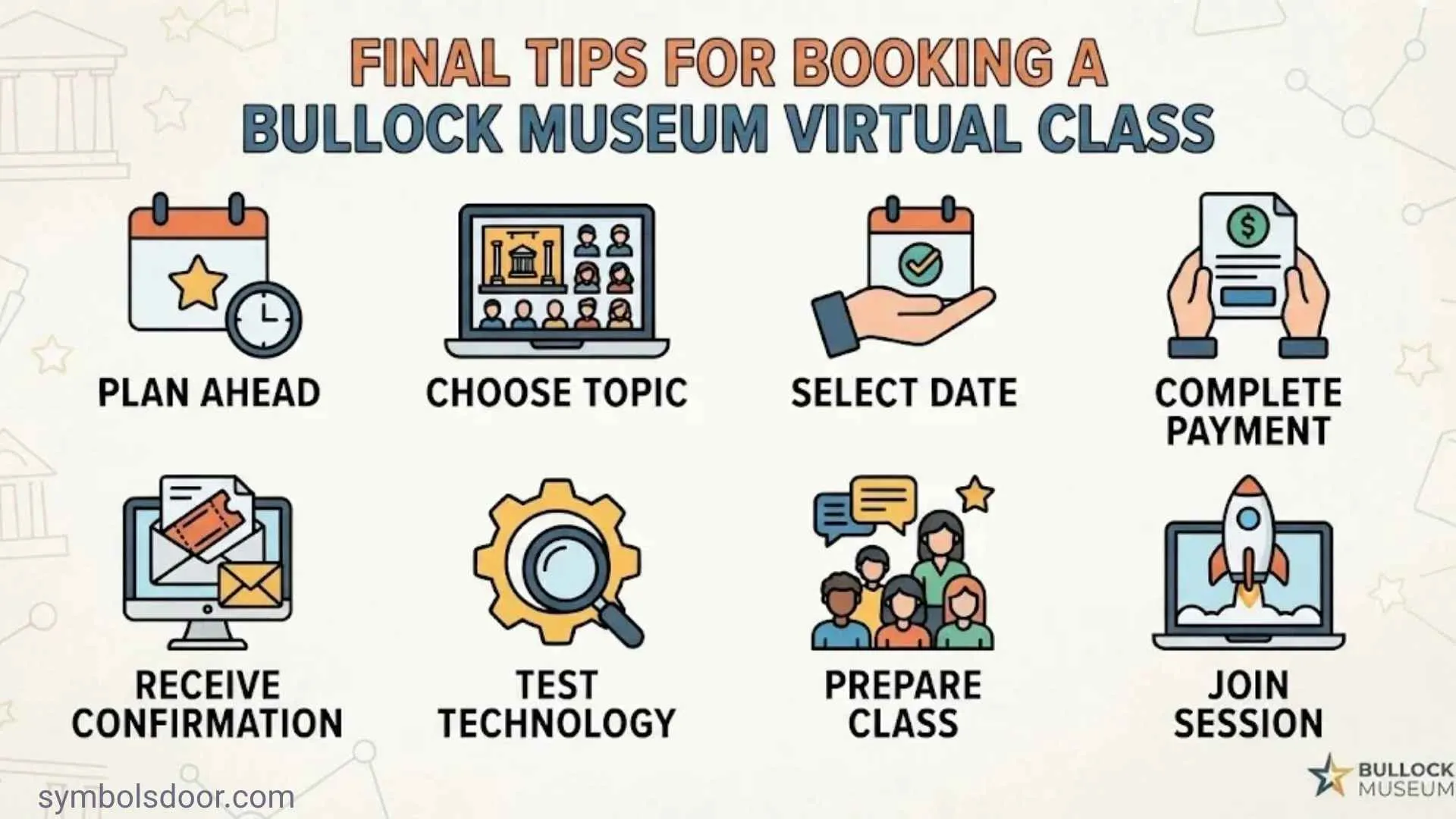
Keep these practical tips in mind:
- Create or access your Connect2Texas account before starting registration.
- Search the Events calendar using the provider and grade-level filters.
- Review the full event description before selecting a session.
- Check the date, time zone, cost, and registration status.
- Prepare teacher, campus, and student information in advance.
- Contact the provider if you need a custom date.
- Wait for confirmation before treating a reservation as final.
- Follow the connection instructions supplied for your event.
- Test the internet, camera, microphone, speakers, and classroom display.
- Prepare students with a short introduction and a few questions.
The Bullock Texas State History Museum virtual programs give teachers a way to bring museum-based learning into classrooms without an in-person visit. With the right program, a confirmed reservation, and a tested classroom setup, students can connect with a Museum Educator and explore Texas history through an engaging online experience.

Hi, I’m Sienna Brooks, and I believe that the right words can inspire, comfort, and empower people at every stage of life. For as long as I can remember, I’ve been drawn to meaningful quotes and the stories behind them. I love curating collections of inspirational, motivational, and heartfelt quotes that resonate with readers around the world.
Through my writing, I strive to help others find encouragement, whether they’re celebrating life’s happiest moments or navigating its biggest challenges. I believe that wisdom is timeless, and I’m passionate about sharing words that leave a lasting impact.
I am the author of Reflections in Words and The Journey of Inspiration, two books dedicated to exploring the beauty and power of timeless quotes.
 Asher Monroe
 Rowan Sinclair Rowan Sinclair